 KwikID Documentation
Facematch
Compare two face images and return a match score. Server-side multipart POST with Bearer auth; binary image1 and image2.
API reference
JWT Bearer token authentication. Obtain a token from the KwikID dashboard.
In: header
Response Body
curl -X POST "https://__mock__/facematch" \ -F image1="string" \ -F image2="string"{
"confidence_score": 0,
"facematch_result": "True"
}{
"msg": "string"
}{
"detail": {},
"message": "string"
}Overview
Call POST /facematch on the Machine Learning API host with Authorization: Bearer <token> and multipart/form-data parts image1 and image2 (binary). Optional unique_id correlates logs. On 200 OK, read facematch_result ("True" or "False") and confidence_score.
Key features
- 1:1 face match for selfie vs ID photo workflows.
- Server-side images: Send bytes from your backend after you already received images over HTTPS.
How to use bulk testing in the Playground
Overview
The Facematch API reference on this page includes an interactive Playground where you can exercise POST /facematch before you wire a backend client. In Bulk mode you upload one .zip that contains many paired images; the browser sends each pair in sequence while you keep the tab open.
Bulk mode highlights
- Batch many pairs: One archive instead of repeating Single uploads for every pair.
- Predictable naming: Files are matched by a shared stem before
_image1and_image2so pairs stay aligned. - Same endpoint shape: Each pair still maps to
image1andimage2forPOST /facematch.
Screenshots in this section
Some figures are plain captures of the portal. Others use red rounded outlines, red arrows, and small on-image labels; those marks are documentation overlays only and are not part of the live product UI.
Steps in the UI
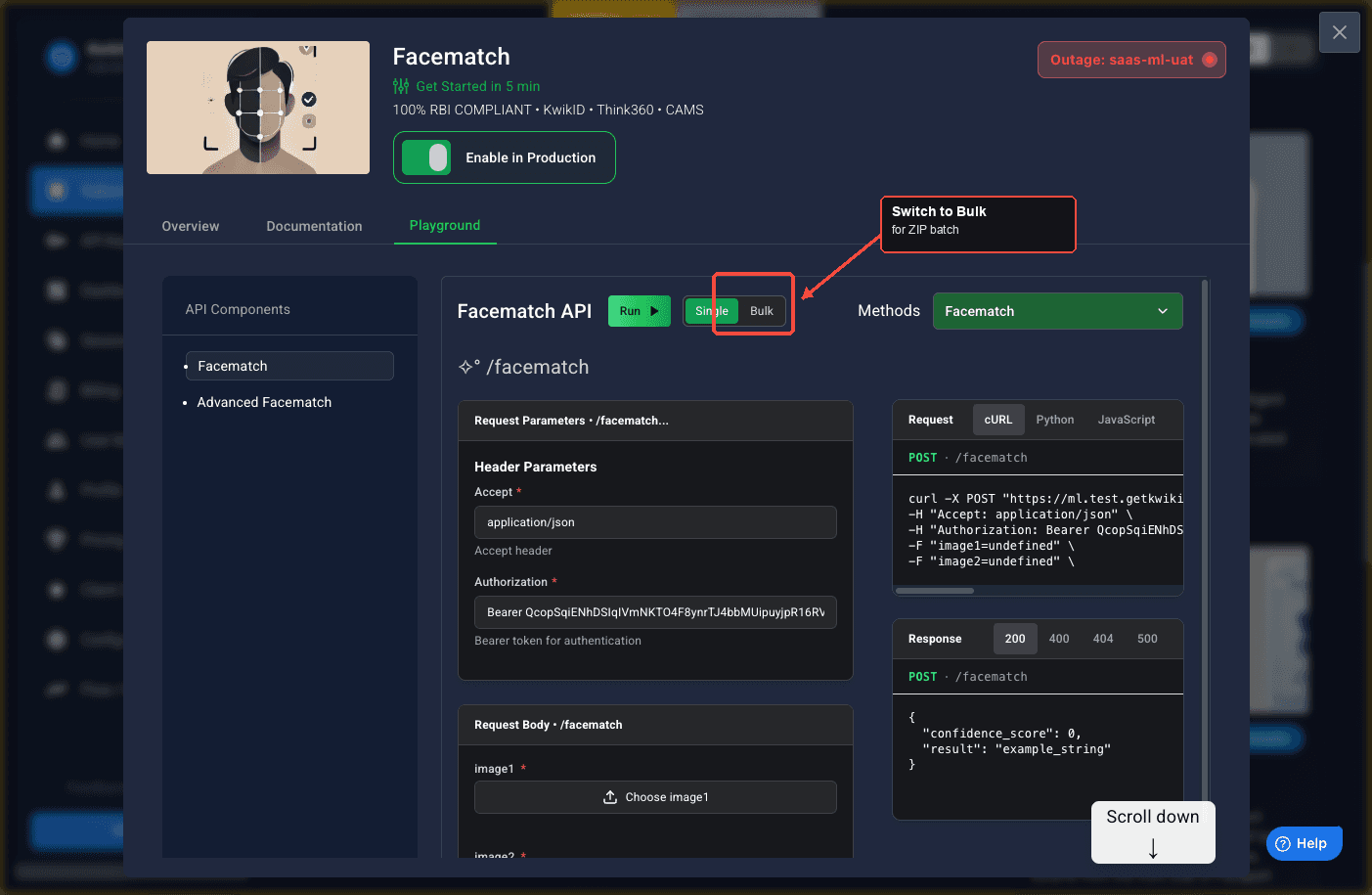
- Open the Playground: On this doc page, open the Playground tab for Facematch (the interactive panel next to Overview and Documentation).
-
Select Bulk: In the playground header, find the Single / Bulk toggle to the right of the green Run button. Switch from Single to Bulk. Single is for one
image1andimage2at a time; Bulk reveals the ZIP workflow and hides the per-field single uploads. -
Prepare the archive: Build one
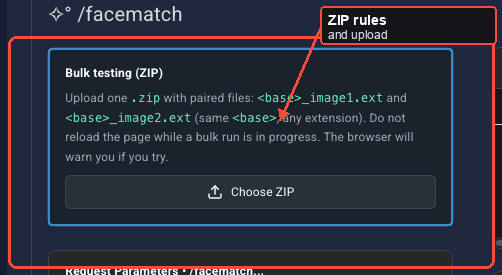
.zipwhose members follow the same pattern the UI shows: one shared name stem, then_image1, a dot, then any extension, and the matching_image2file with the same stem. Extensions can differ between the two files. Example:customer01_image1.jpgandcustomer01_image2.png. -
Read the on-screen rules: The Bulk testing (ZIP) card repeats the naming rule and reminds you that a bulk run keeps the page busy until it finishes.
-
Upload your input ZIP: Click Choose ZIP in that card and select your archive from disk. After a valid parse, the UI shows how many pairs were detected, for example 2 pair(s) loaded. Click Run to process. Do not reload or close the tab while a batch is running. If you try to leave mid-run, the browser may show its standard "leave site" confirmation because work is still in flight.
-
Run: Click the green Run button in the same header row as the mode toggle. It is the primary submit action for the playground (the control uses id
submit-btnin the DOM). Run is only useful once pairs are loaded; if the button looks inactive, fix the ZIP or naming first, then choose the file again. -
Wait for completion: Processing time grows with the number of pairs. Keep the tab open until the run finishes.
-
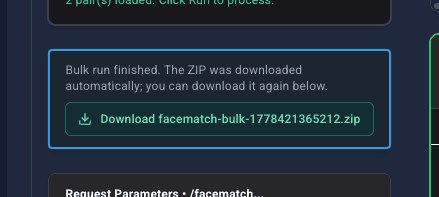
Download the results ZIP: When processing completes, a bordered panel shows Bulk run finished. The ZIP was downloaded automatically; you can download it again below. Your browser also triggers a download of a file named like
facematch-bulk-<timestamp>.zip. Use the green Download facematch-bulk-… control in that panel if you need the same archive again (same contents as the automatic download).
Bulk output ZIP layout
The downloaded archive is a normal .zip you can open locally. A typical successful run (example: facematch-bulk-1778419687078.zip) contains the following.
| Path | Purpose |
|---|---|
summary.xlsx | Spreadsheet summary for all pairs in the run (open in Excel, Numbers, or LibreOffice). |
results/ | One JSON file per input pair. |
Each file under results/ is named from the pair stem (for example results/test1.json, results/test2.json). The JSON records the request metadata plus the API body returned for that pair.
Example shape for a successful pair:
{
  "pair_id": "test1",
  "image1_path": "fm-bulk-test/test1_image1.jpeg",
  "image2_path": "fm-bulk-test/test1_image2.jpeg",
  "success": true,
  "http_status": 200,
  "response_time_ms": 4157,
  "body": {
    "confidence_score": 0.85,
    "facematch_result": "True",
    "credits_consumed": 2
  }
}pair_id: Same stem as in your input filenames (the part before_image1/_image2).image1_path/image2_path: Paths as read from your input archive (folders inside the ZIP are preserved in this string).success: Whether that pair’s call completed without a client-side or transport error.http_status: HTTP status fromPOST /facematchfor that pair.response_time_ms: Round-trip time in milliseconds (may be fractional).body: Parsed JSON fromPOST /facematchwhensuccessis true, includingconfidence_score,facematch_result, andcredits_consumedwhen the API returns them.
If a pair fails, expect success: false with fields that describe the error instead of a full body (exact keys can vary by failure type). Inspect the matching results/<pair>.json and summary.xlsx together for a full run-level view.
Benefits
- Faster QA: Run a regression folder of face pairs in one action.
- Clear pairing: The shared stem plus
_image1/_image2suffix rule reduces mistakes when many files share one directory. - Auditable exports: The results
.zipgives per-pair JSON underresults/plussummary.xlsxfor spreadsheet review.
Implementation
Step 1: Call from your backend
POST /facematch HTTP/1.1
Host: <machine-learning-api-base-url>
Authorization: Bearer <token>
Content-Type: multipart/form-data; boundary=----boundary

------boundary
Content-Disposition: form-data; name="image1"; filename="probe.jpg"
Content-Type: image/jpeg

<binary>
------boundary
Content-Disposition: form-data; name="image2"; filename="reference.jpg"
Content-Type: image/jpeg

<binary>
------boundary--
Step 2: Decide pass or fail
Apply your risk thresholds on confidence_score and treat facematch_result as the boolean match line.
Error handling
| HTTP status | When |
|---|---|
| 400 | Missing image or unreadable file. |
| 401 | Invalid token. |
Security notes
- Biometric data: Minimize retention; follow RBI and IT Act obligations for your use case.
Benefits
- Automates face match without building an in-house model.
Next steps
- Advanced Facematch (
image1required,image2optional; structured per-image blocks andimage1_image2_facematch) - Liveness detection
- API Suite index