 KwikID Documentation
CKYC Data Ingestion
Step-by-step guide to generate CKYC zip files and upload them to CERSAI using the Data Ingestion Engine
Overview
The CKYC Data Ingestion feature allows you to generate and upload CKYC zip files that can be directly submitted to the CERSAI portal.
With this feature, you can:
- Upload and validate case data and related images
- Automatically map and process cases requiring CKYC numbers
- Generate and download final zip files ready for CERSAI submission
This guide explains the entire workflow - from logging in to downloading your final CKYC zip.
Process Flow
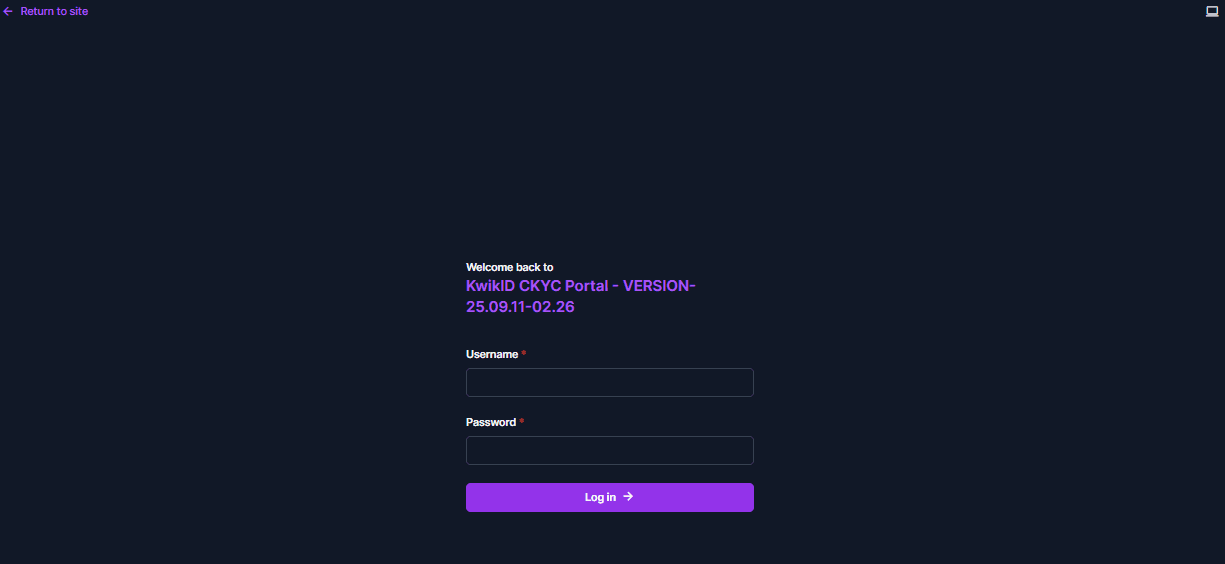
Step 1: Log into the Portal
- Open the CKYC Portal and log in with your credentials.
- Enter your Username and Password, then click Login.
Step 2: Access the CKYC Data Ingestion Feature
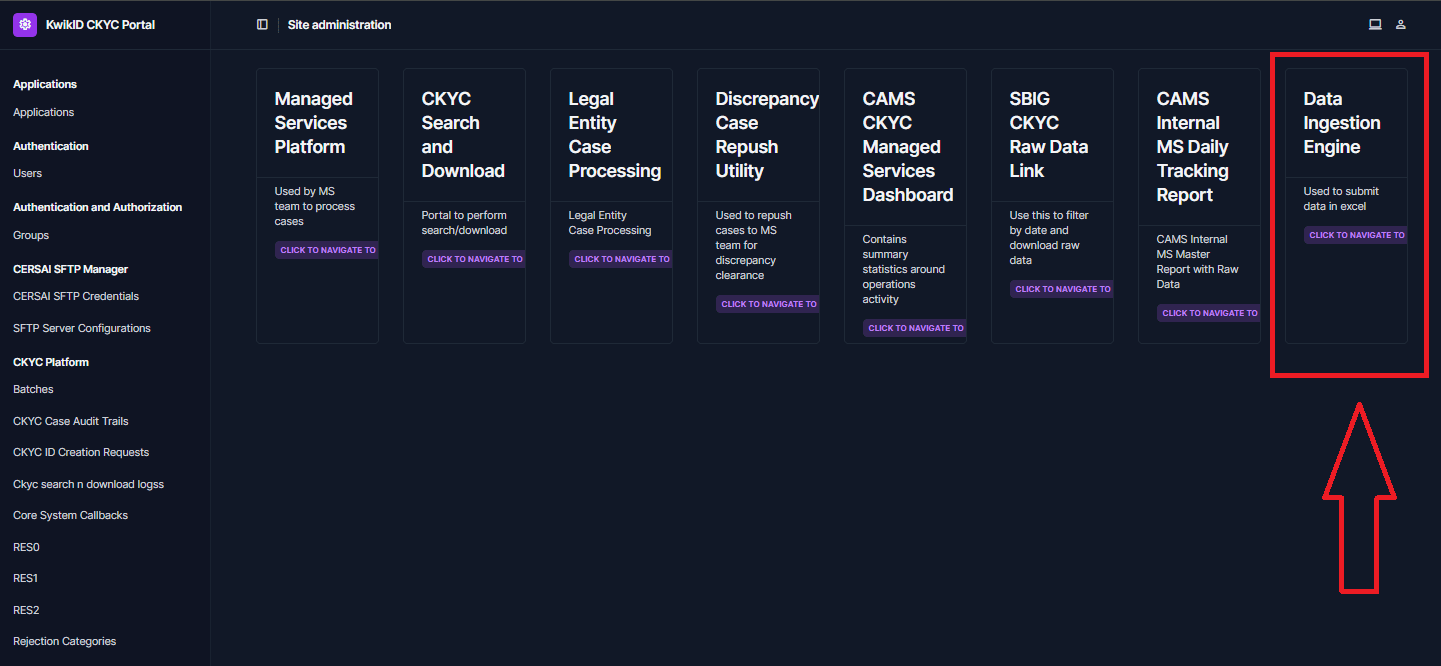
After logging in, you'll land on the Home Page, which displays all your Subscribed Features.
- From the available subscribed features, click the
Data Ingestion Enginetab.
This will open the CKYC Data Ingestion Home Page, where you can begin generating zip files.
Step 3: Upload Data & Images
The Upload Interface provides a structured way to upload your case data and related images. Follow the steps below to ensure a smooth and accurate data ingestion process.
Steps to Upload
-
Enter your Client ID (provided by KwikID). This uniquely identifies your uploads.

-
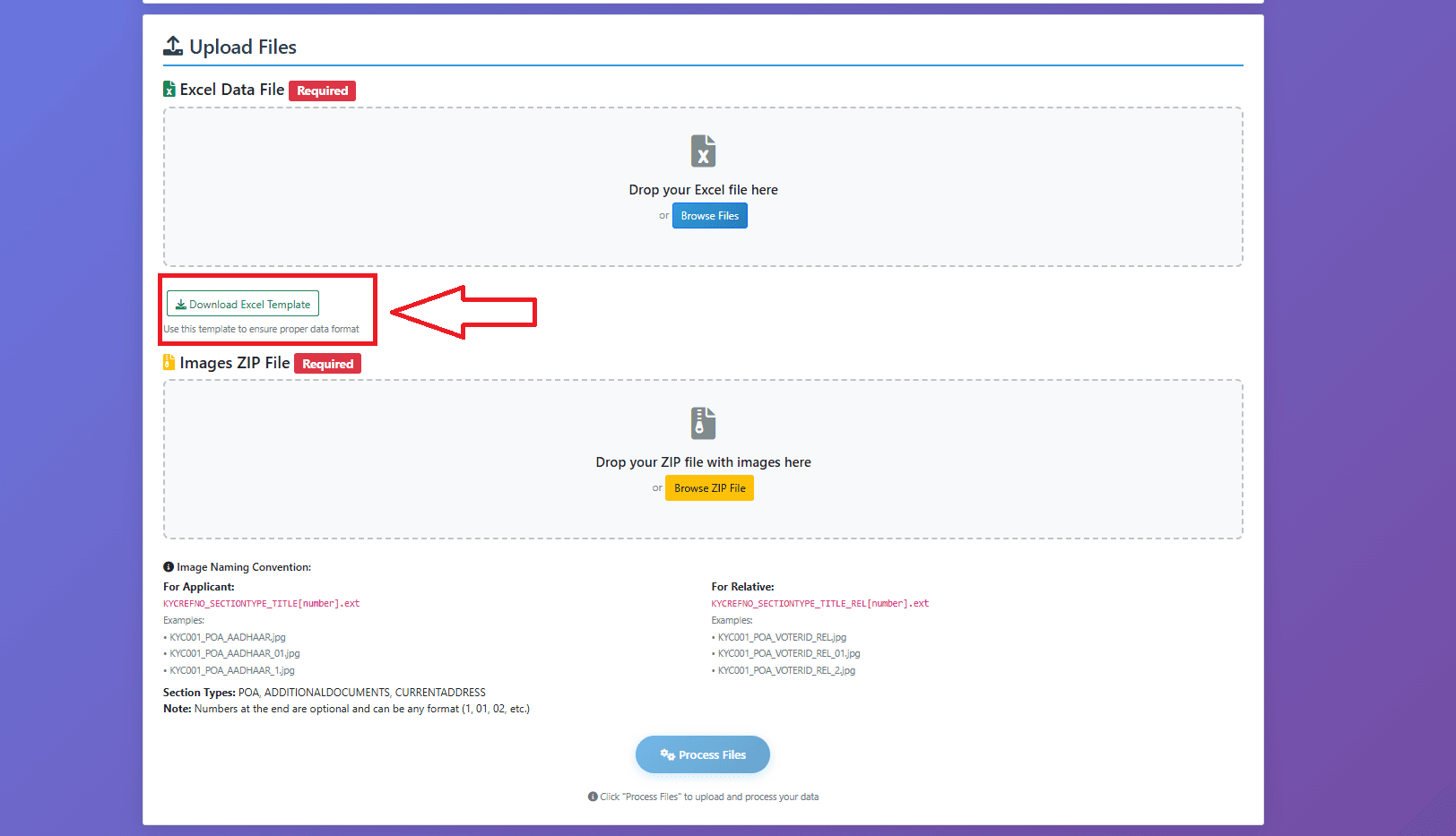
Download the Sample Excel Template to ensure your data follows the correct structure and column format.
-
Upload the required files:
- Excel file containing your case data
- Images ZIP file containing all related images
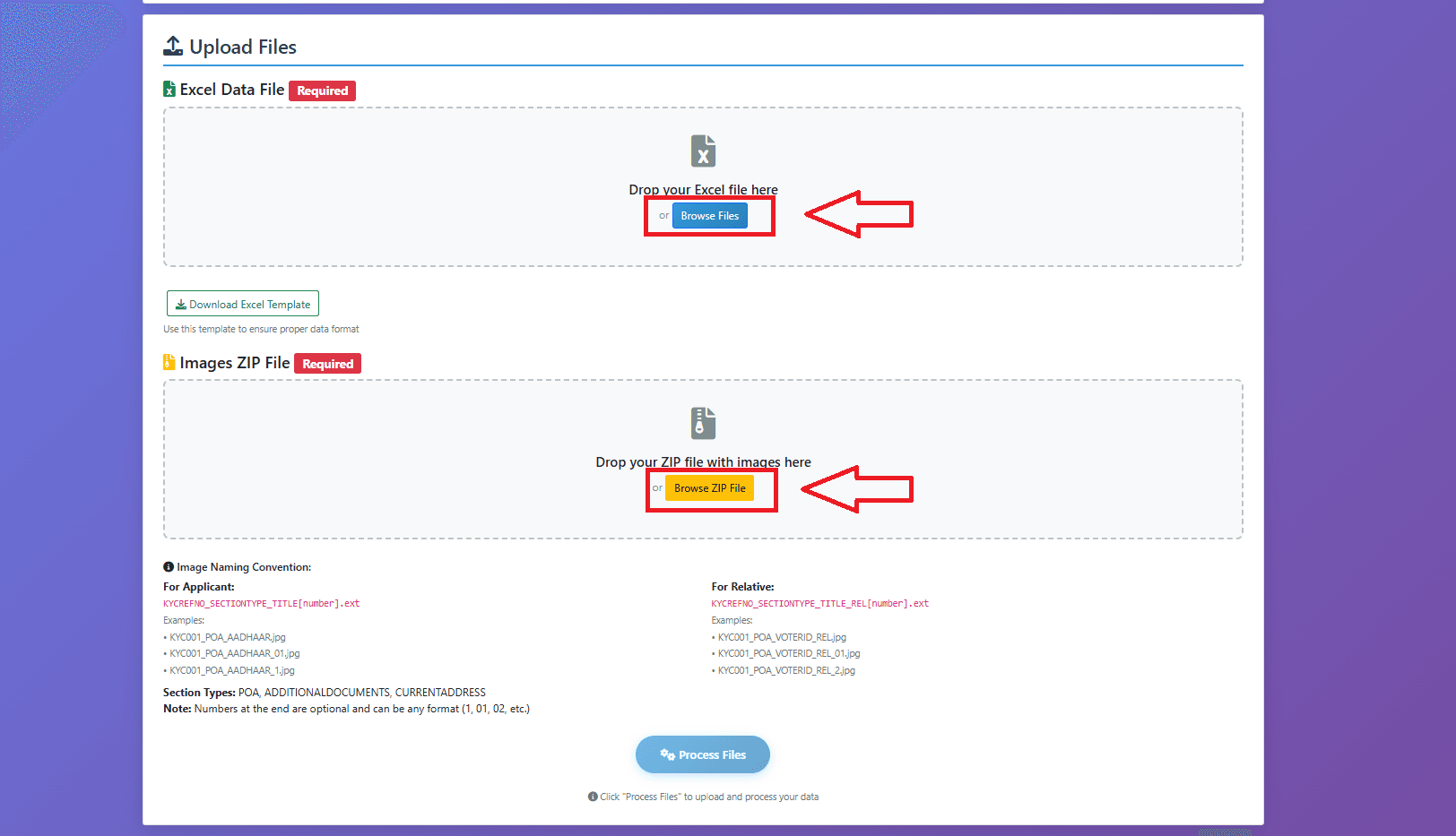
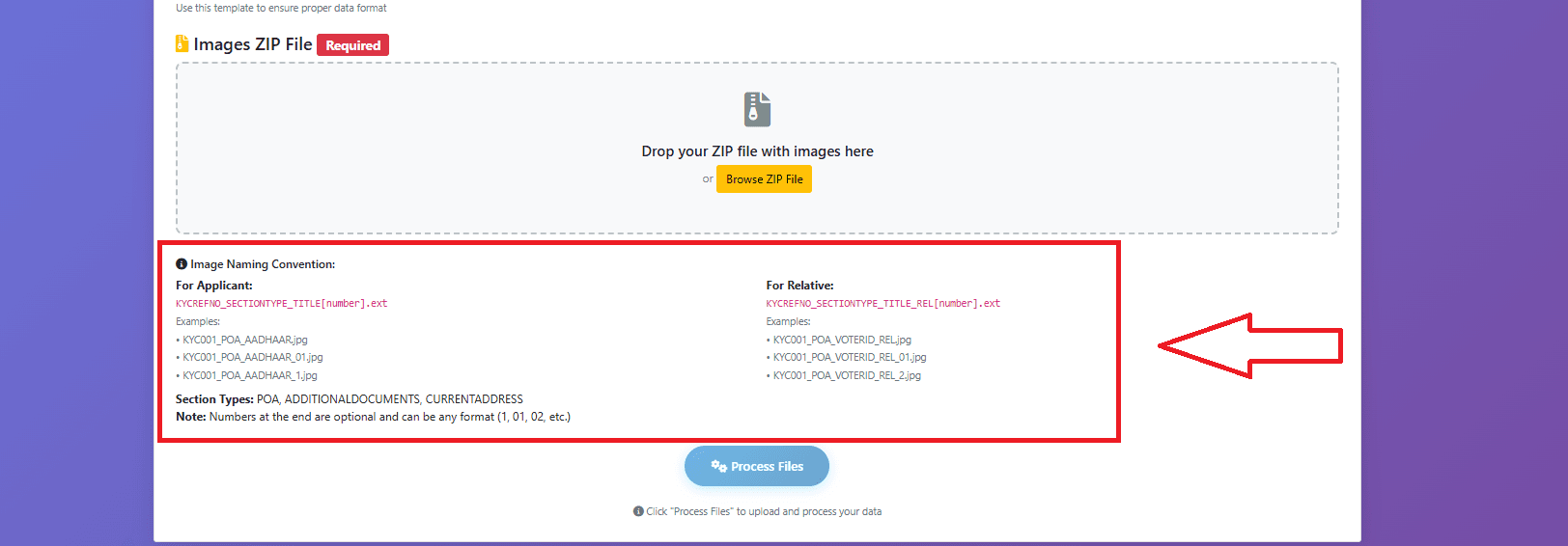
Image Naming Rules
At the bottom of the upload page, review and follow the image naming rules carefully. These ensure that each image maps correctly to its corresponding record in the Excel file.
Step 4: Process Uploaded Files
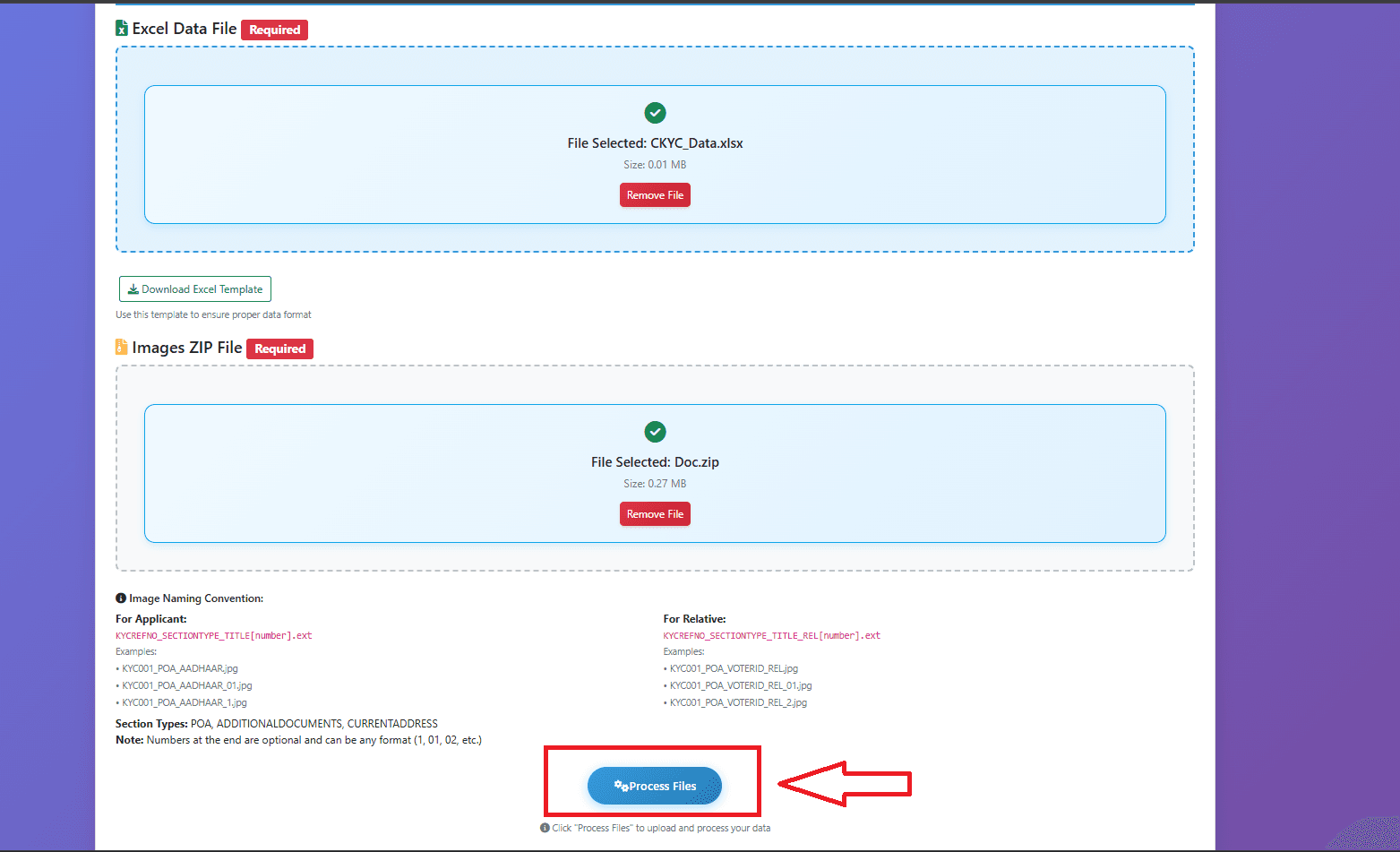
- Once the data and images are uploaded, click Process Files button.
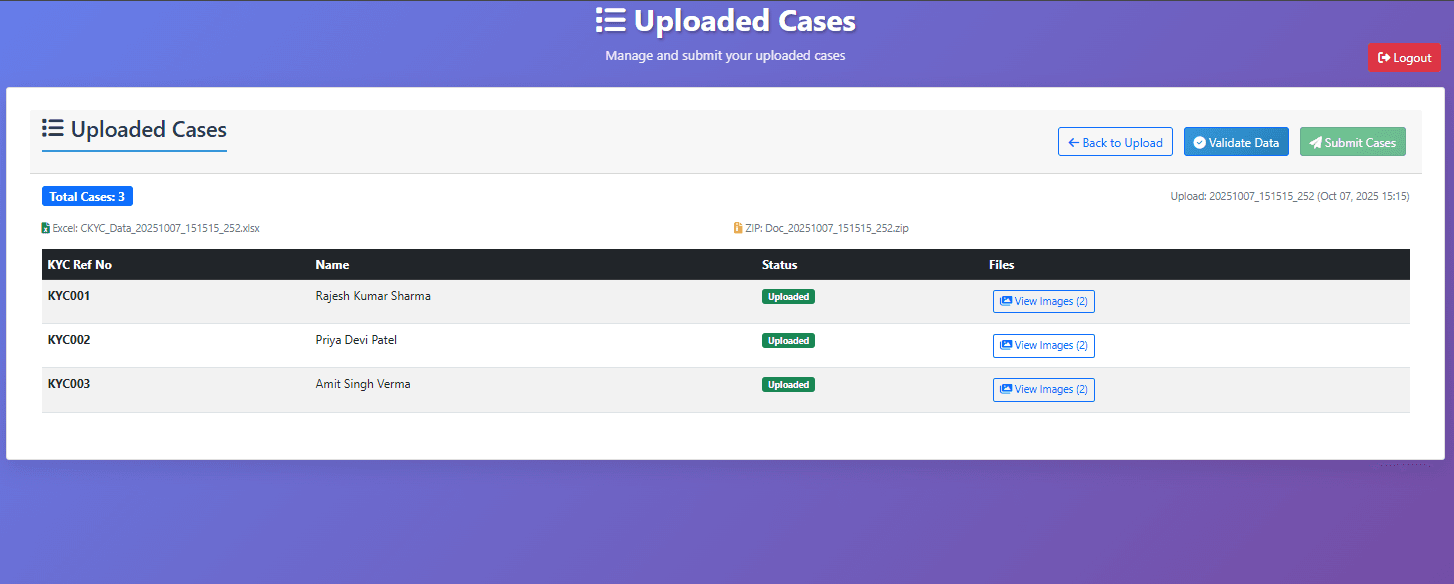
- You will be redirected to the Verification Page, where all uploaded cases are listed for review.
Step 5: Verify Uploaded Data
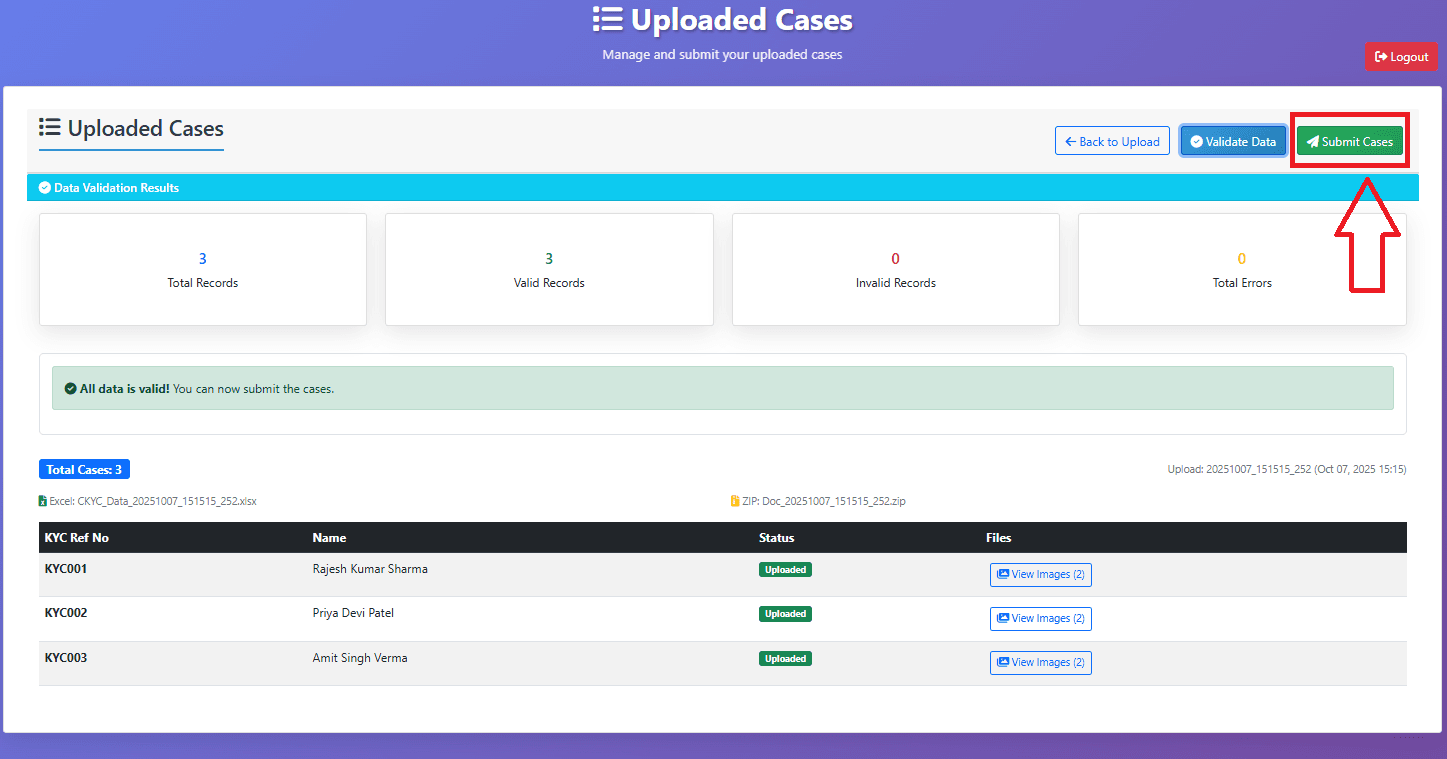
On the Verification Page, you can perform detailed checks before submission to ensure all data and images are correct.
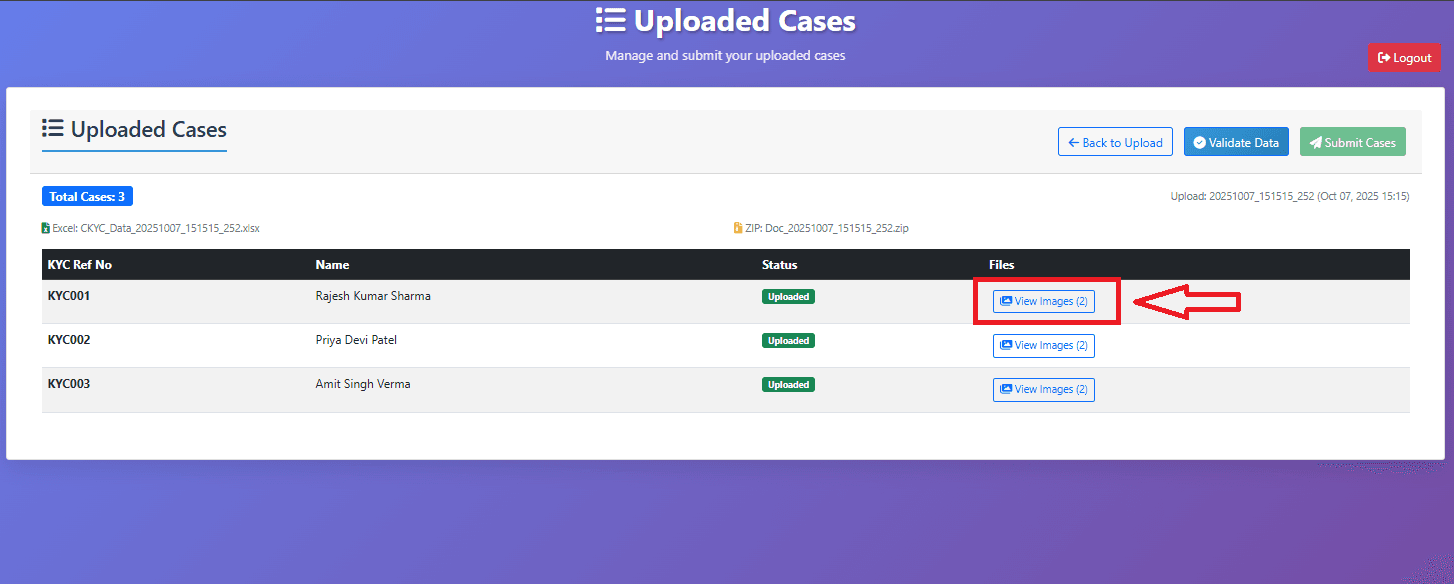
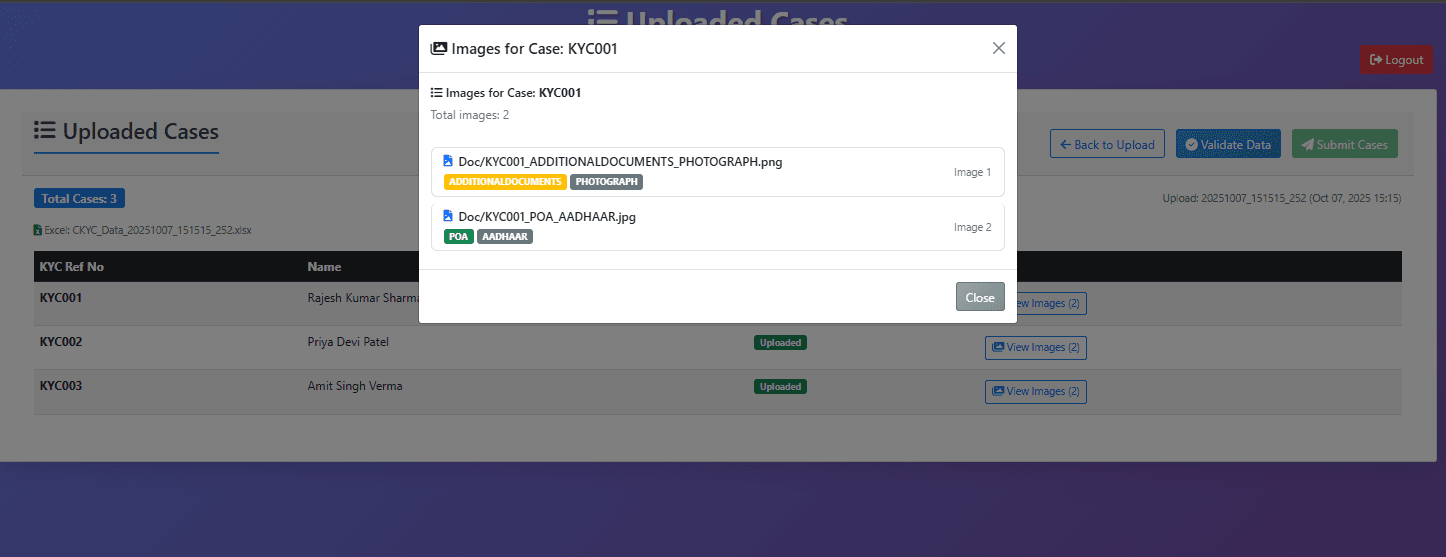
1. View Images
Click the View Images button next to any case to visually confirm correct image mapping.
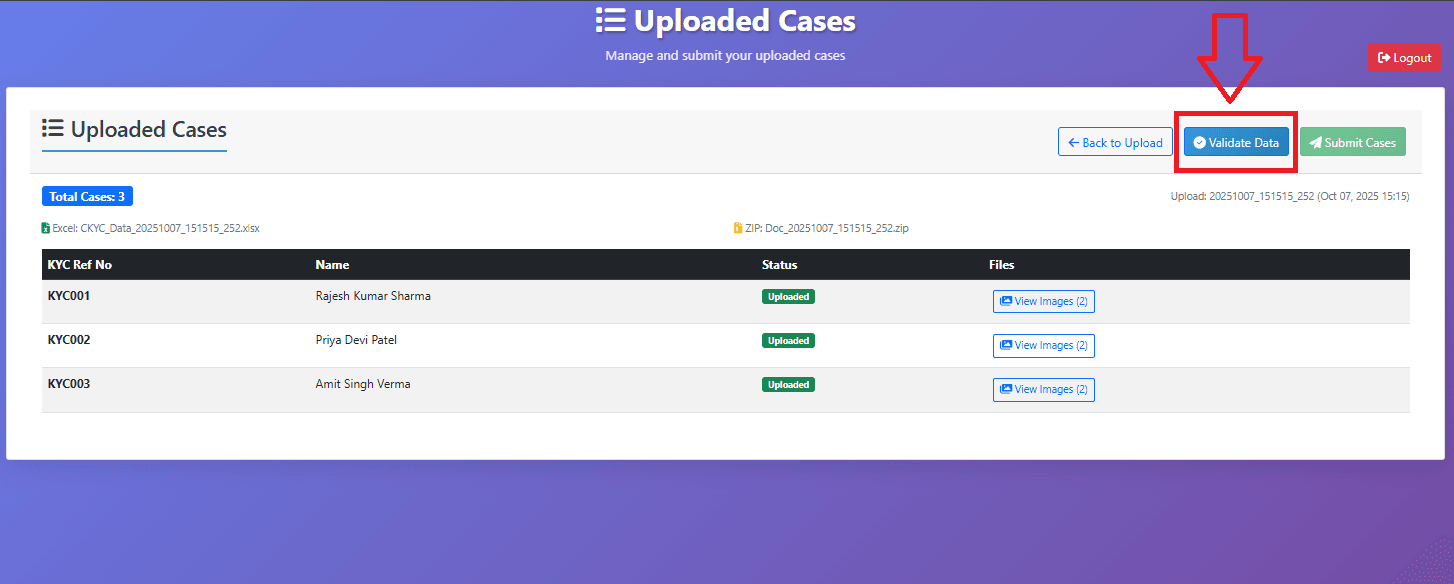
2. Validate Data
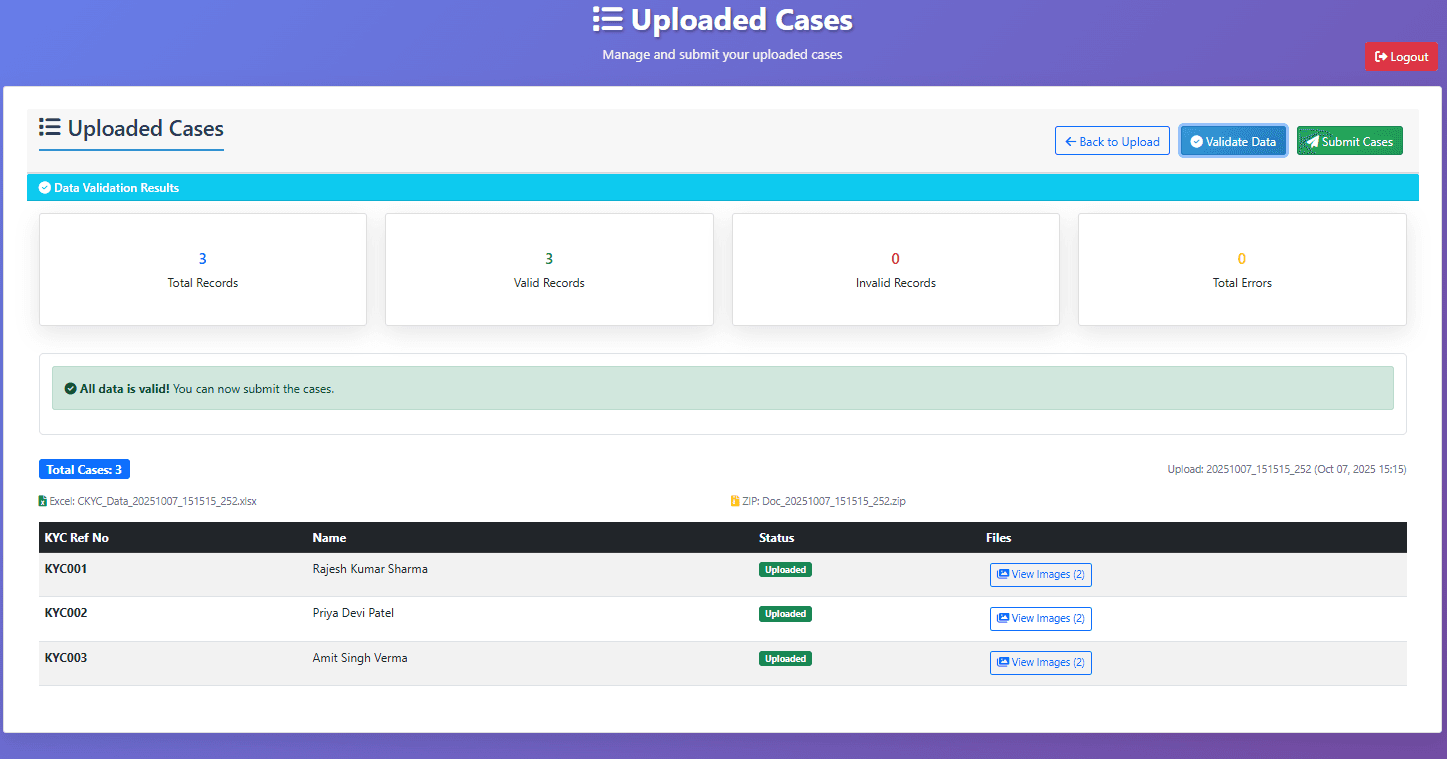
Click Validate Data to check for formatting issues or missing fields.
- Any errors will be highlighted on-screen
- Once validation is successful, you can proceed to submission
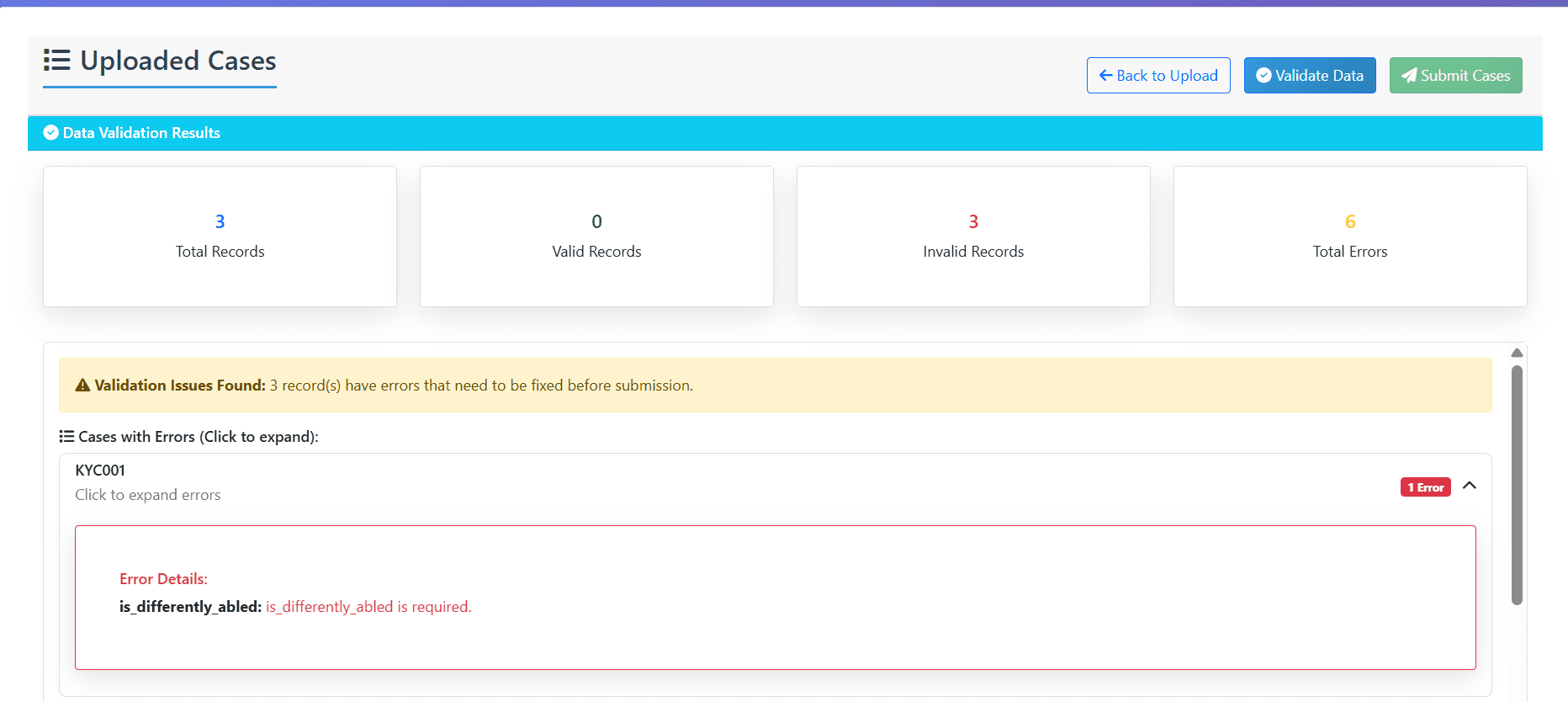
⚠️ Tip: Always resolve validation errors before submission to prevent data rejection.
Step 6: Submit Data
- After validation passes, the Submit Data button becomes active.
- Click Submit Data to send your processed cases for zip generation.
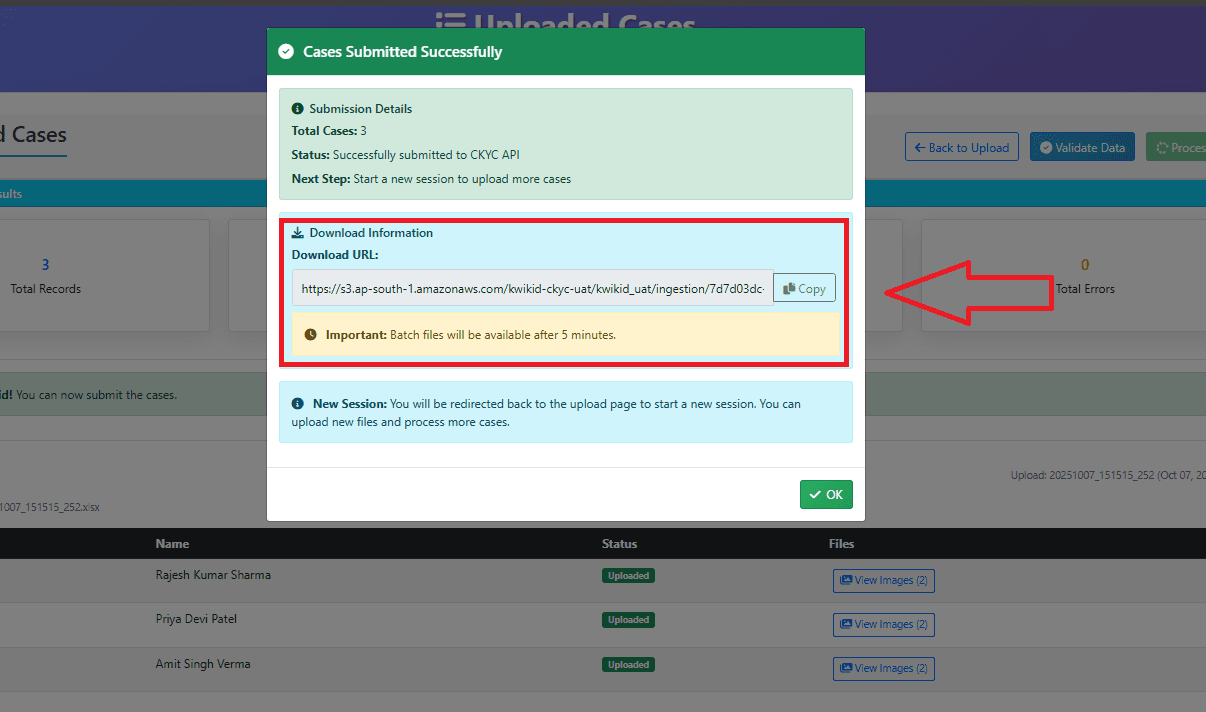
- A confirmation popup will appear once submission is successful.
Step 7: Download Final Zip File
Once your submission completes:
- A Download Link will appear in the popup or on the output list page
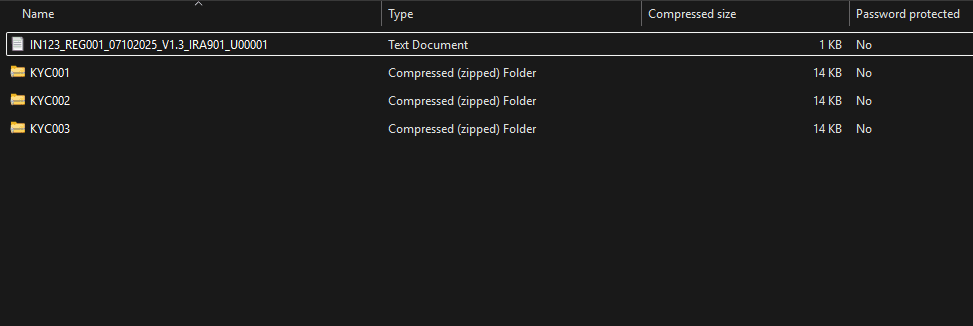
- Click the link to download the final CKYC zip file ready for CERSAI submission
- The zip includes both processed case data and their corresponding images
Key Features
✅ End-to-End Automation - From upload to CERSAI-ready zip generation
✅ Data Validation - Ensures all records meet CKYC data standards
✅ Image Mapping - Automatic linkage between Excel entries and images
✅ Error Handling - Clear visibility of failed or missing records
✅ Instant Download - Generate and download final zips instantly after submission
Summary
The CKYC Data Ingestion module streamlines your entire CKYC file generation workflow - from data upload to validation, submission, and zip creation - ensuring compliance, accuracy, and speed for every CERSAI submission.