 KwikID Documentation
Video FlowAdmin Portal
Queue Viewer
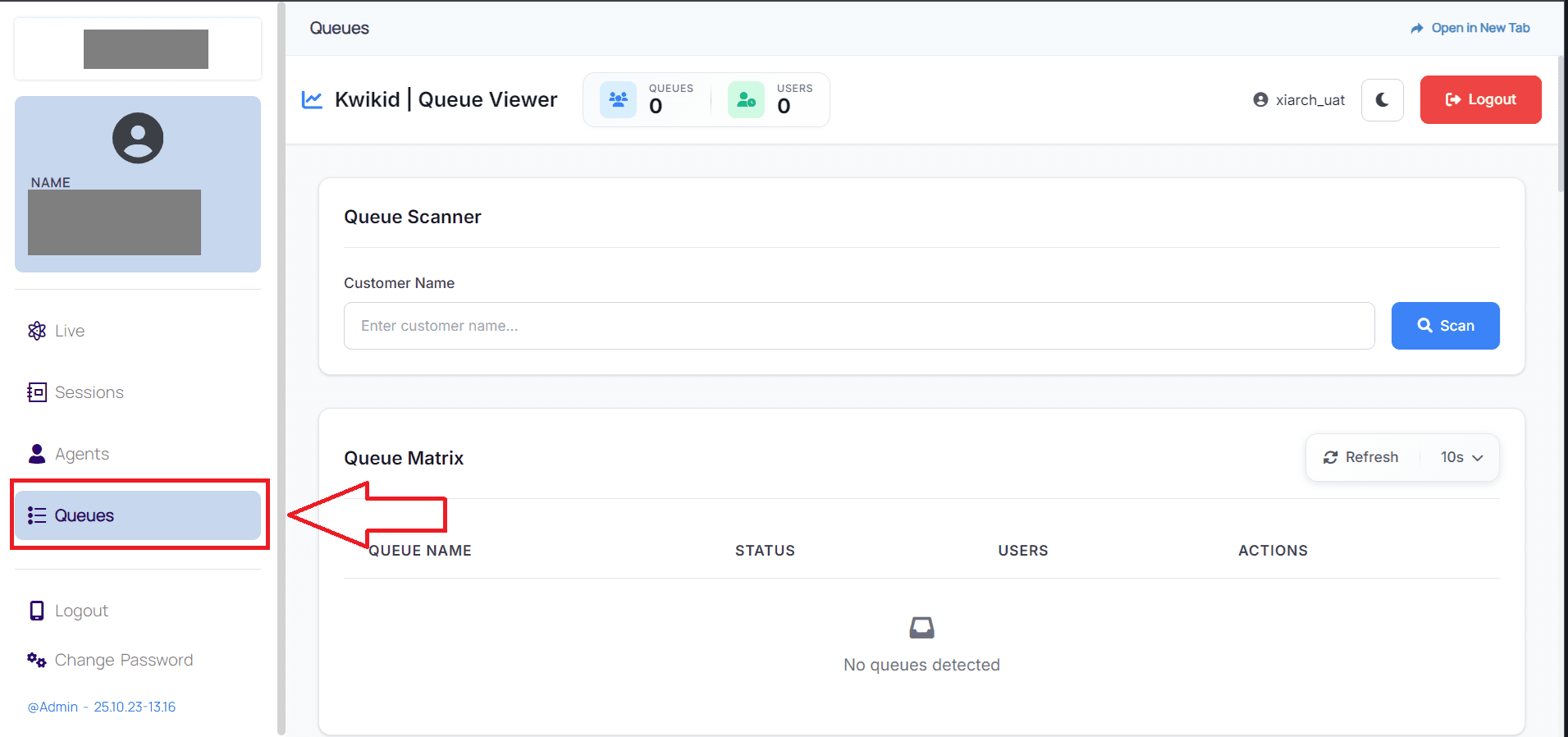
The Kwikid Queue Viewer is a real-time queue management dashboard designed to monitor and manage customer service queues. The application provides administrators with a comprehensive view of queue status, user positions, and system health.
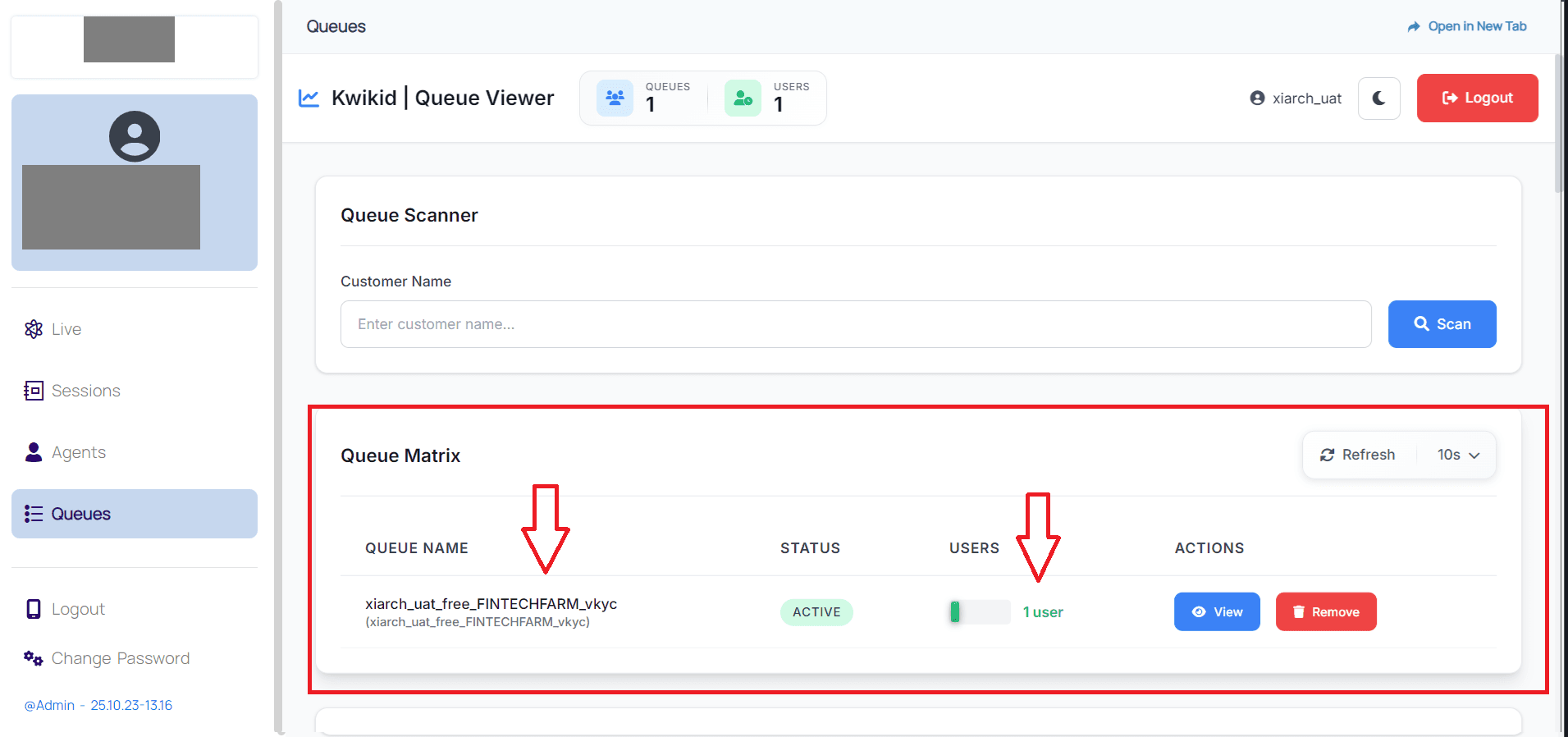
Key Features Highlighted by Red Marking
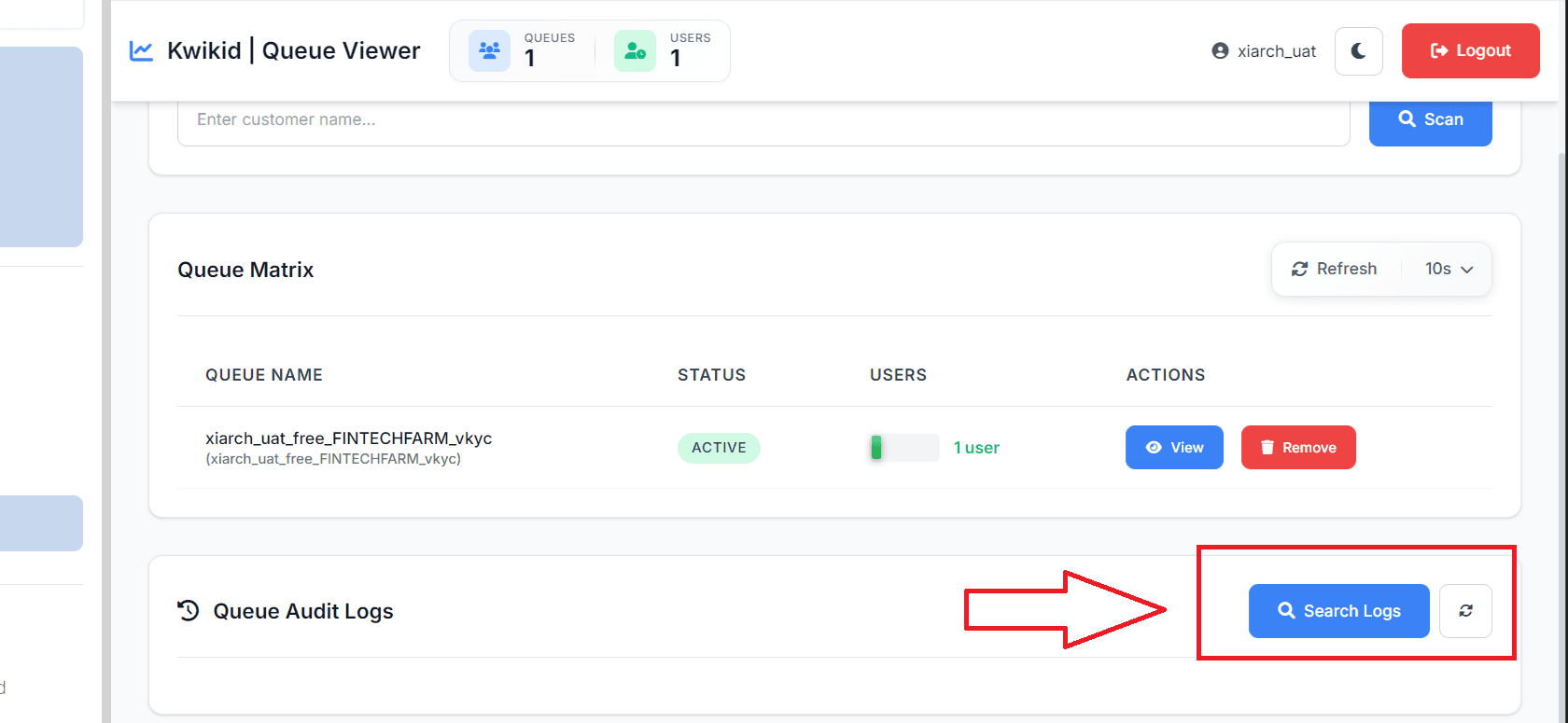
Queue Matrix (Primary Feature)
The red marking points to the Queue Matrix section, which is the core functionality of the application. This section displays:
- Queue Status Monitoring: Real-time display of queue status (ACTIVE, EMPTY, UNKNOWN)
- User Count Visualization: Visual representation of users currently in each queue
- Queue Management Actions: View detailed queue information and remove users from queues
- Auto-refresh Capability: Configurable refresh intervals (default 10 seconds) for real-time updates
Queue Scanner
- Customer Name Search: Input field for searching specific customers across queues
- Quick Queue Access: Direct scanning functionality to locate customers
User Management Interface
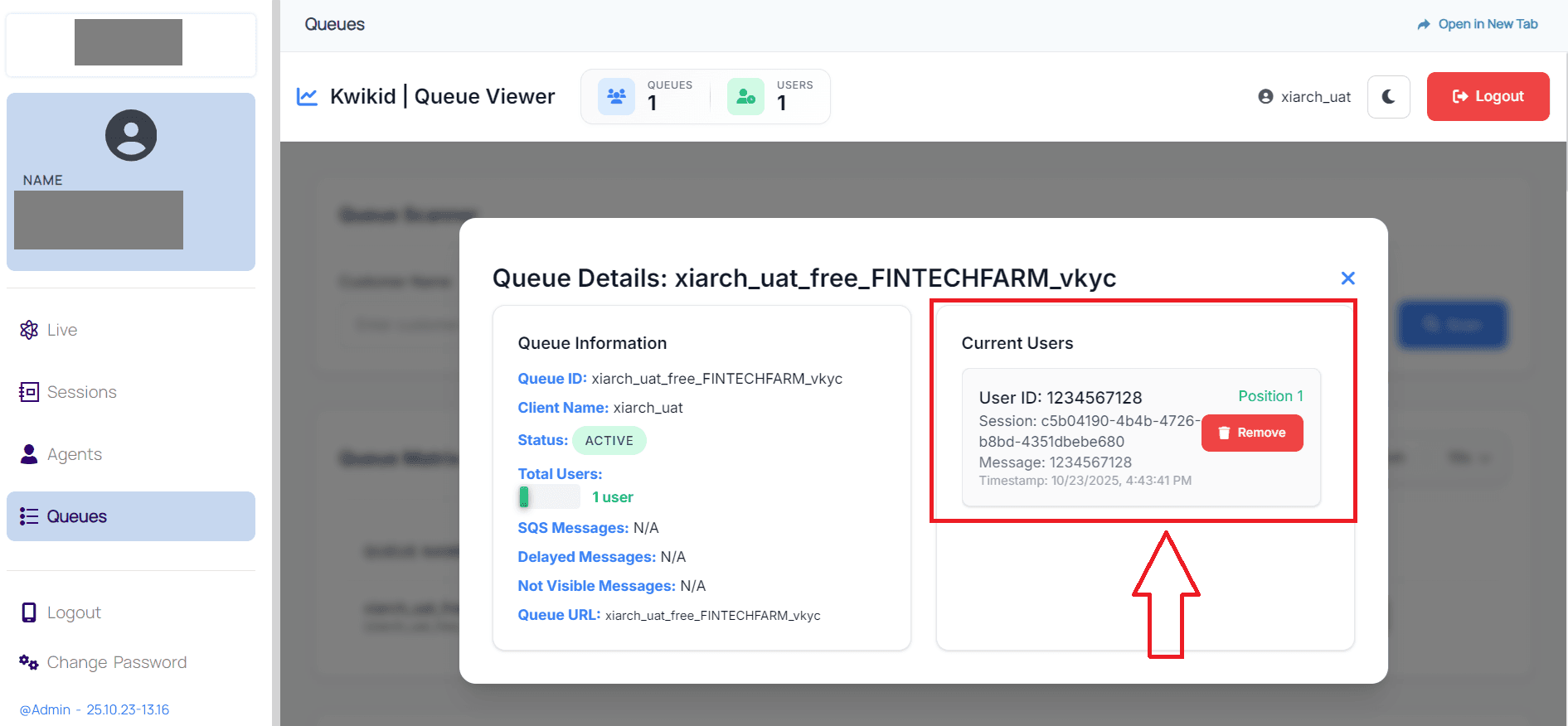
- Real-time User Display: Shows active users currently in the selected queue
- User Information: Displays comprehensive user details including:
- User ID (1234567128)
- Queue Position (1) with visual status indicator
- Session ID for tracking
- Message data
- Timestamp of queue entry
Interactive Features
- Remove User Capability: Red "Remove" button with trash icon for queue management
- Position Tracking: Green badge showing user's position in queue
- Session Management: Unique session ID for user tracking
Customer Lookup Interface
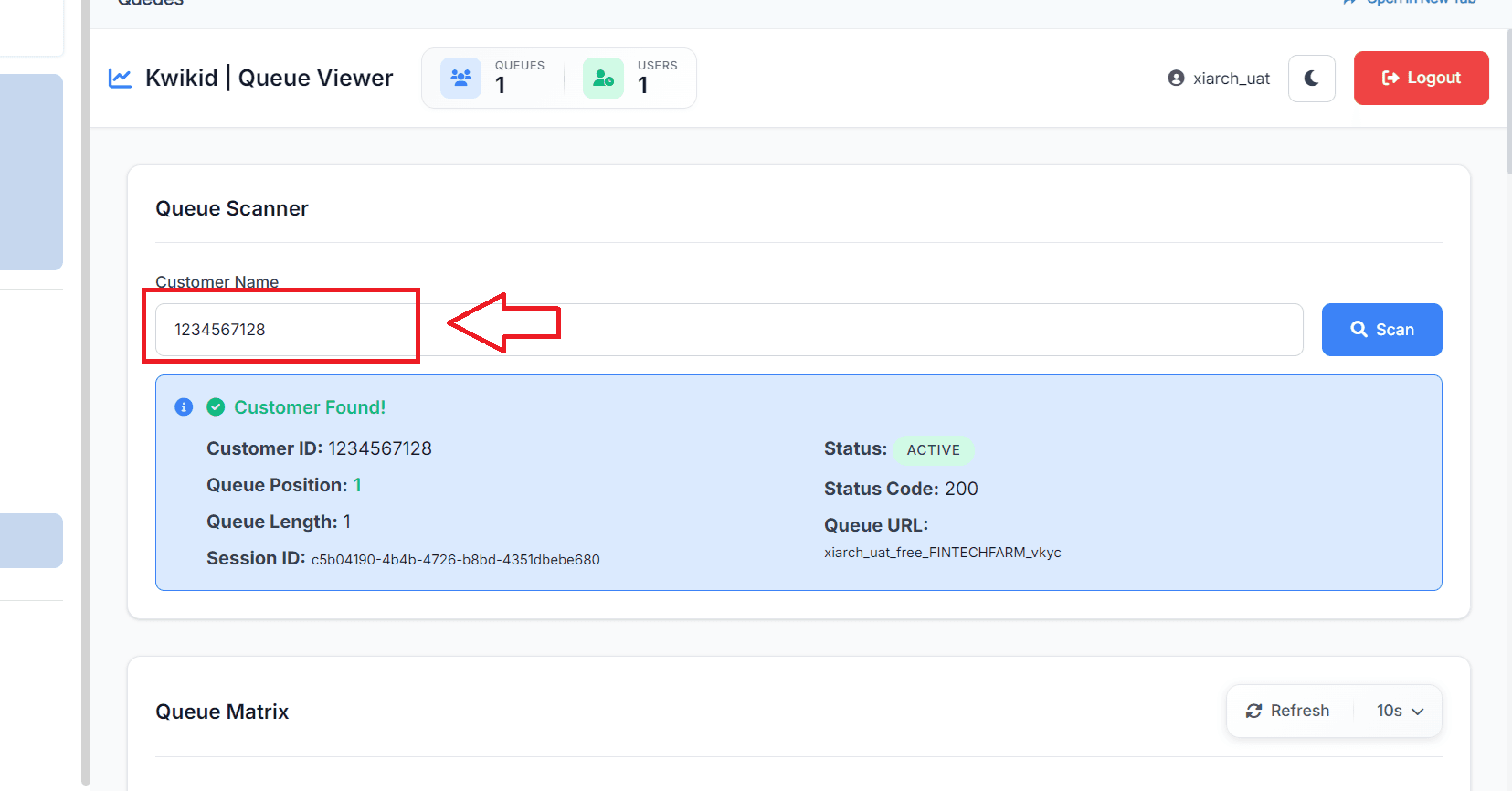
- Input Field: Labeled "Customer Name", this field allows users to enter a customer identifier (e.g., "1234567128" as shown).
- Scan Button: A blue button labeled "Scan" (with a magnifying glass icon) initiates the search for the entered customer.
Customer Status Display
- "Customer Found!" Notification: A green checkmark and blue information icon indicate a successful customer lookup.
- Detailed Customer Information: Upon a successful scan, the following details are displayed:
- Customer ID: The unique identifier for the customer (e.g., "1234567128").
- Queue Position: The customer's current position in the queue (e.g., "1").
- Queue Length: The total number of items/customers in the queue (e.g., "1").
- Session ID: A unique identifier for the customer's session (e.g., "c5b04190-4b4b-4726-b8bd-4351dbebe680").
- Status: The current status of the customer in the queue, highlighted in green (e.g., "ACTIVE").
- Status Code: A numerical status code (e.g., "200").
- Queue URL: The URL associated with the customer's queue (e.g., "xiarch_uat_free_FINTECHFARM_vkyc").
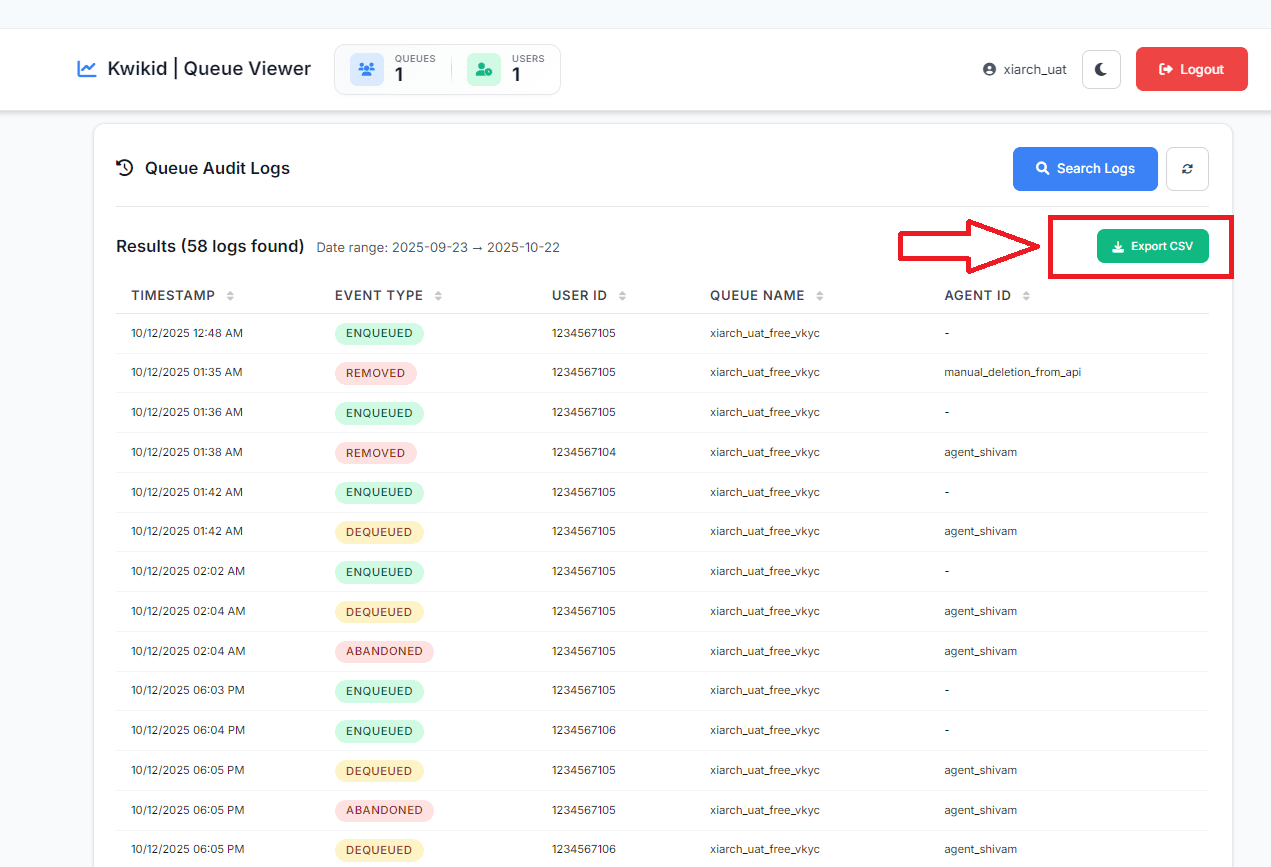
Queue Audit Logs Section
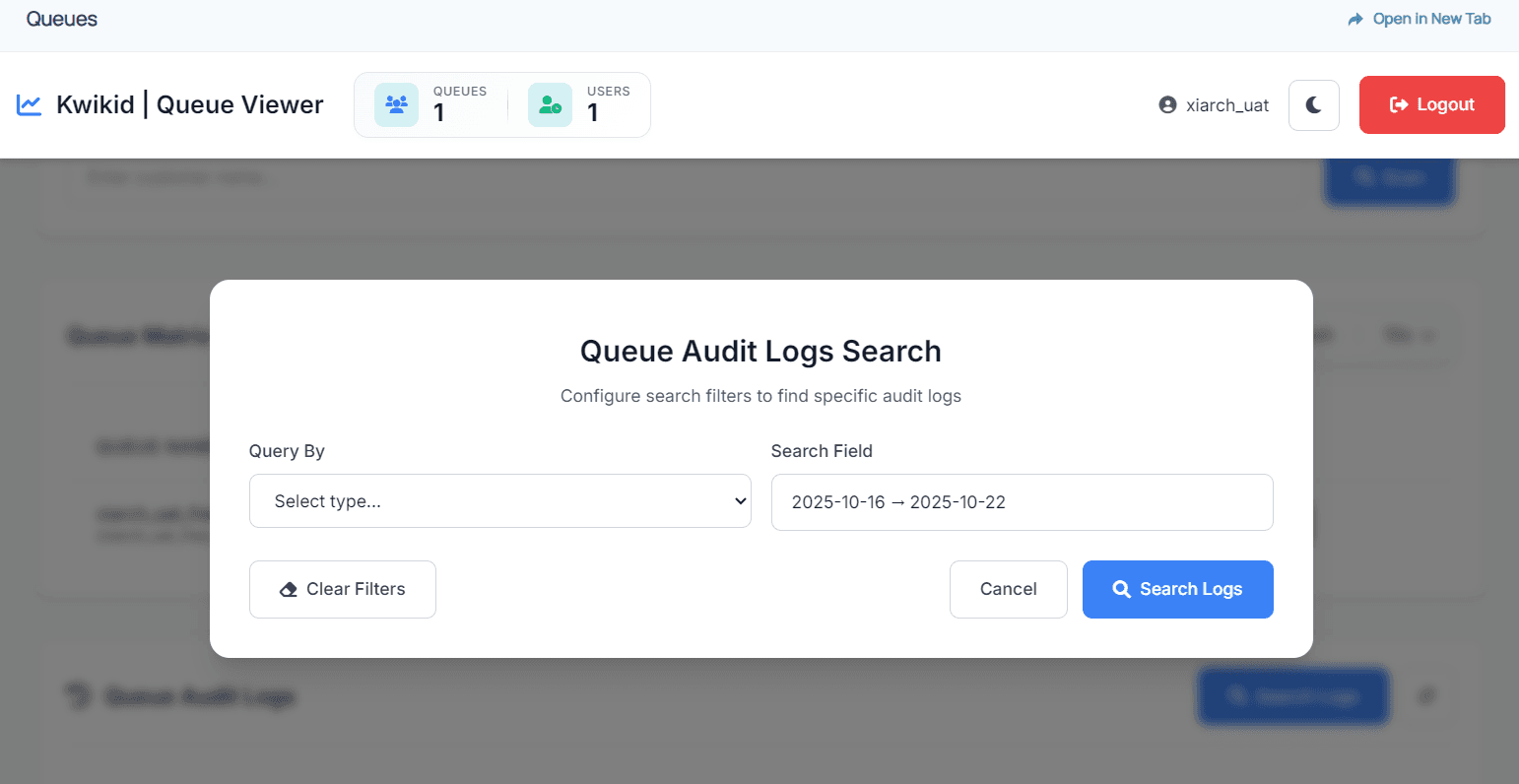
Based on the code analysis, here are all the available types of log searches in the Queue Audit Logs section: Search Types Available:
- Agent Search
- Type: agent
- Field: Agent ID
- Description: Search logs by specific agent identifier
- Input: Text field for entering agent ID
- User Search
- Type: user
- Field: User ID
- Description: Search logs by specific user identifier
- Input: Text field for entering user ID
- Queue Search
- Type: queue
- Field: Queue Name
- Description: Search logs by specific queue name
- Input: Text field for entering queue name
- Session Search
- Type: session
- Field: Session ID
- Description: Search logs by specific session identifier
- Input: Text field for entering session ID
- Event Type Search
- Type: event
- Field: Event Type
- Description: Search logs by specific event types
- Input: Dropdown with predefined event types including:
All Events
- User Enqueued
- User Dequeued
- User Removed
- User Position Checked
- Queue Created
- Queue Details Accessed
- User Not Present in DB
- Failed to Search User in DB
- Failed to Search Session in DB
- Customer Already in Call
- Failed to Update Session (User Abandoned)
- User Abandoned
- Failed to Update Session
- Failed to Update Agent Table
- Failed to Acquire Queued User
- Date Search
- Type: date
- Field: Date
- Description: Search logs by specific date
- Input: Date picker for selecting a single date
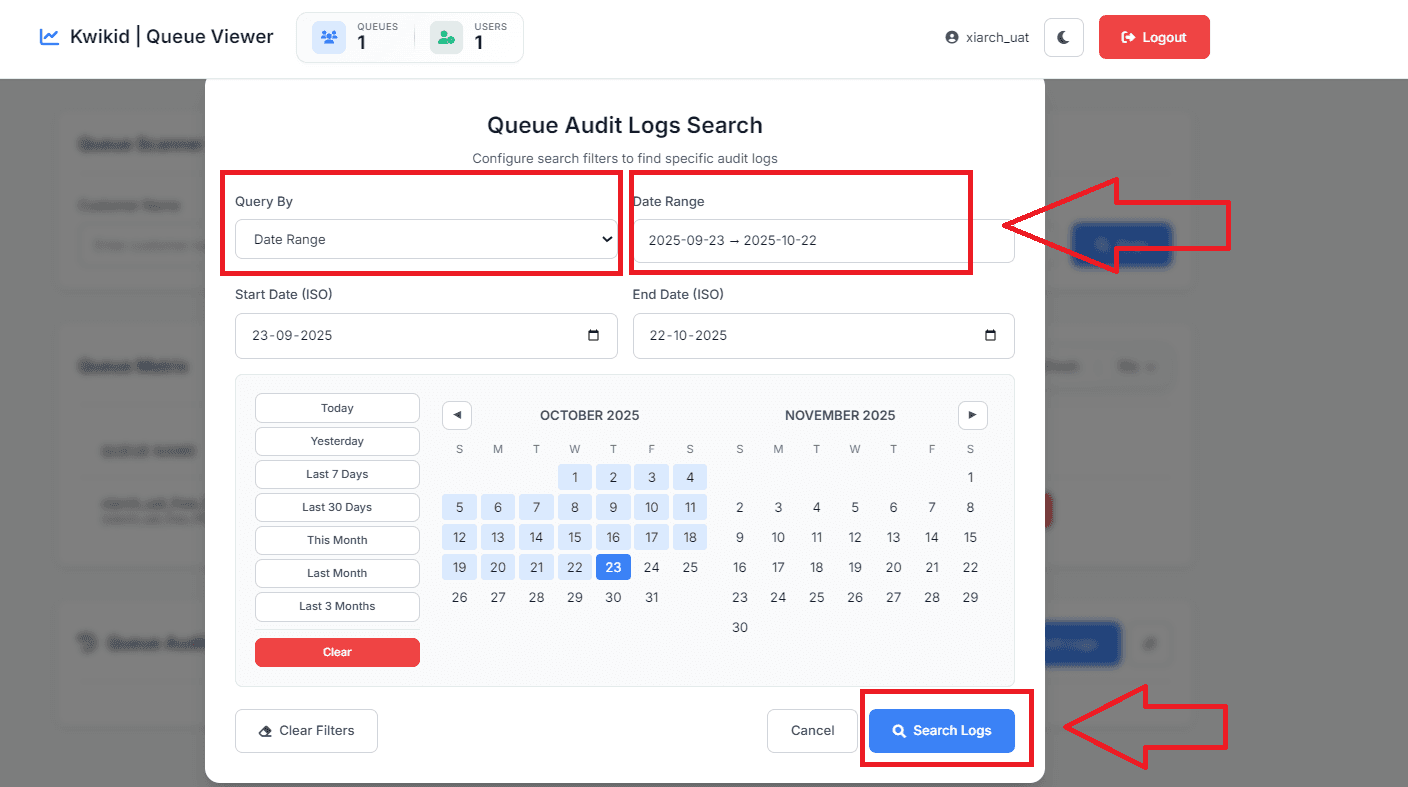
- Date Range Search
- Type: date_range
- Field: Date Range
- Description: Search logs within a specific date range
- Input: Interactive calendar with start and end date selection
- Features: Quick selection buttons (Today, Yesterday, Last 7 Days, Last 30 Days, This Month, Last Month, Last 3 Months)
For additional help or troubleshooting, contact our support team or refer to the API documentation.