 KwikID Documentation
Configuration
Tenant metadata schema, approval workflow, ingest validation, search, and AI settings
Configuration
The Configuration module manages workflow, ingest, search, and AI settings for the tenant. Super admins edit structure and roles; changes apply to upload forms, API validation, and search indexing.
Overview
Configuration is organized into five tabs: Metadata schema, Approval, Ingest, Search, and AI. Use Reset to discard unsaved changes and Save changes to persist.
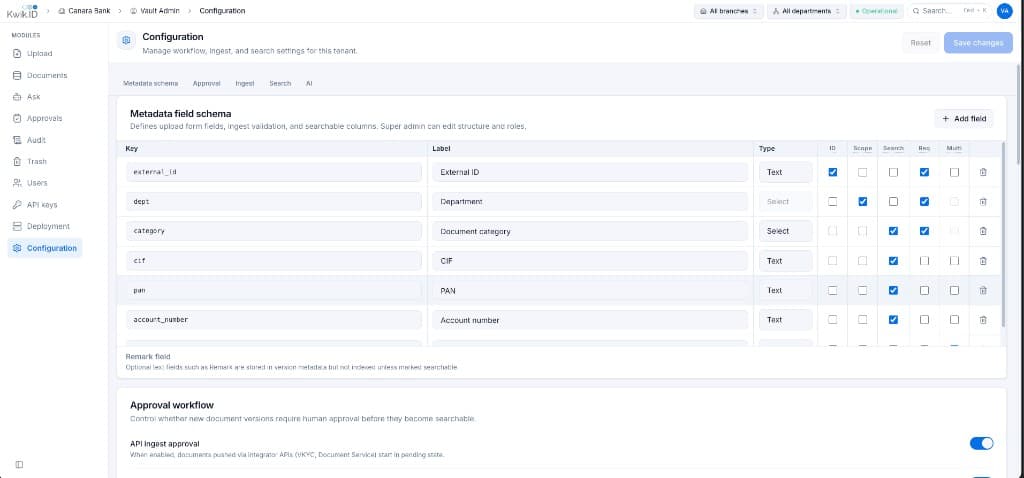
Metadata Schema Tab
Defines upload form fields, ingest validation, and searchable columns.
| Column | Description |
|---|---|
| Key | Internal field identifier (e.g. external_id, dept, cif) |
| Label | Display name on upload form |
| Type | Text or Select |
| ID | Mark as unique identifier field |
| Scope | Branch or department scope field |
| Search | Index for search queries |
| Req | Required on upload |
| Multi | Allow multiple values |
Click + Add field to extend the schema. Optional text fields like Remark are stored in version metadata but not indexed unless marked searchable.
Approval Tab
Control whether new document versions require human approval before they become searchable.
| Setting | Description |
|---|---|
| API ingest approval | When enabled, documents pushed via integrator APIs start in pending state |
Subtext: documents from VKYC and Document Service enter pending until an approver acts in Approvals.
Ingest Tab
Validation rules applied to all document uploads.
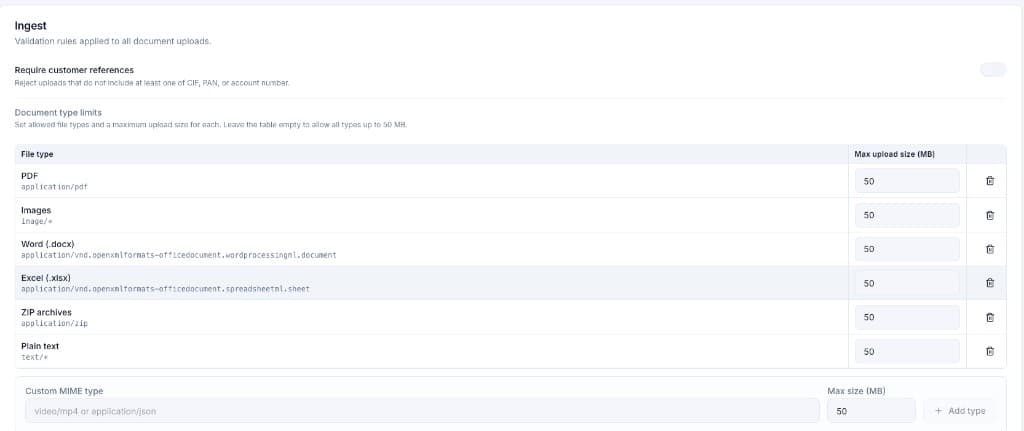
Require customer references
Toggle to reject uploads that do not include at least one of CIF, PAN, or account number.
Document type limits
Set allowed file types and maximum upload size per MIME type. Leave the table empty to allow all types up to 50 MB.
| File type | MIME type | Default max size |
|---|---|---|
application/pdf | 50 MB | |
| Images | image/* | 50 MB |
| Word (.docx) | application/vnd.openxmlformats-officedocument.wordprocessingml.document | 50 MB |
| Excel (.xlsx) | application/vnd.openxmlformats-officedocument.spreadsheetml.sheet | 50 MB |
| ZIP archives | application/zip | 50 MB |
| Plain text | text/* | 50 MB |
Add custom MIME types (e.g. video/mp4, application/json) with the + Add type button.
Search Tab
Configure federated search behavior, including which metadata fields are indexed and customer reference search requirements.
AI Tab
Configure pluggable LLM provider API keys, model selection, and system prompts for the Ask module.
Retention Tab
Configure soft-delete and lifecycle retention policies:
| Setting | Description |
|---|---|
| Trash retention (days) | How long soft-deleted documents remain recoverable in Trash (default: 90) |
| Hot tier threshold (days) | Documents stay in hot storage while younger than this value (default: 90) |
| Warm tier threshold (days) | Transition to warm storage after this age (default: 730) |
| Cold tier threshold (years) | Move to archive cold storage after this age (default: 2) |
| Permanent purge | Auto-purge trashed documents after retention window expires |
Department-specific overrides are available for Compliance and Treasury. See Storage and Lifecycle for ILM tier details.
Implementation
Step 1: Customize metadata schema
- Open Configuration from the sidebar.
- On the Metadata schema tab, review default fields (External ID, Department, Document category, CIF, PAN, Account number).
- Toggle Search, Req, and Scope flags per field.
- Add or remove fields as tenant requirements evolve.
Step 2: Set approval and ingest rules
- Switch to the Approval tab and toggle API ingest approval.
- Switch to the Ingest tab.
- Enable Require customer references if policy mandates CIF, PAN, or account number.
- Adjust file type limits and max sizes.
Step 3: Save and validate
- Click Save changes to persist configuration.
- Open Upload to verify the form reflects schema changes.
- Test an API ingest to confirm validation rules apply.
Benefits
- No-code tenant customization: Admins adapt forms and validation without code deploys.
- Consistent validation: Same rules apply to web upload and REST ingest.
- Search alignment: Searchable flags control which fields appear in federated queries.
Next Steps
- Upload: form driven by metadata schema
- Ask: AI settings tab
- Approvals: approval workflow toggle
- Integration APIs: ingest payload validated against schema