 KwikID Documentation
Deployment
Service health monitoring, uptime tracking, and infrastructure capacity calculator
Deployment and Infrastructure
The Deployment module (super admin only) monitors platform service health, uptime, and models infrastructure capacity as department read/write load grows.
Overview
Each bank instance runs as a dedicated deployment with isolated infrastructure. The Deployment page provides live health probes and an infra calculator for capacity planning.
Key Features
- Deployment instance overview: Instance type, topology summary, and authentication status.
- Service health table: Live probes with uptime percentages sampled every 60 seconds.
- Resource guidance: Memory and vCPU ranges per service.
- Refresh control: Manual health check refresh.
- Infra calculator: Model peak-hour QPS and API replica recommendations.
- Storage monitoring: Track total used vs allocated capacity, per-department breakdown, and ILM tier distribution.
- Backup status: View last backup timestamp and department backup coverage.
Current Deployment Tab
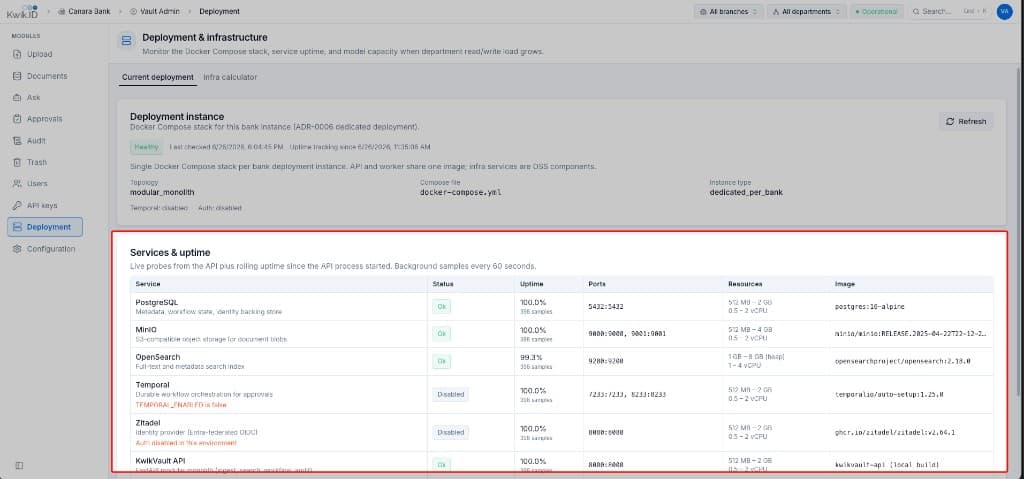
The Current deployment tab shows the active platform services:
| Service category | Role |
|---|---|
| Data store | Metadata, workflow state, and identity backing store |
| Object storage | Document blob store |
| Search index | Full-text and metadata search |
| Workflow engine | Durable orchestration for approvals |
| Identity service | SSO federation and machine authentication |
| Core API | Ingest, search, workflow, and audit |
Status badges show Ok, Disabled, or unhealthy states for each monitored service.
Infra Calculator Tab
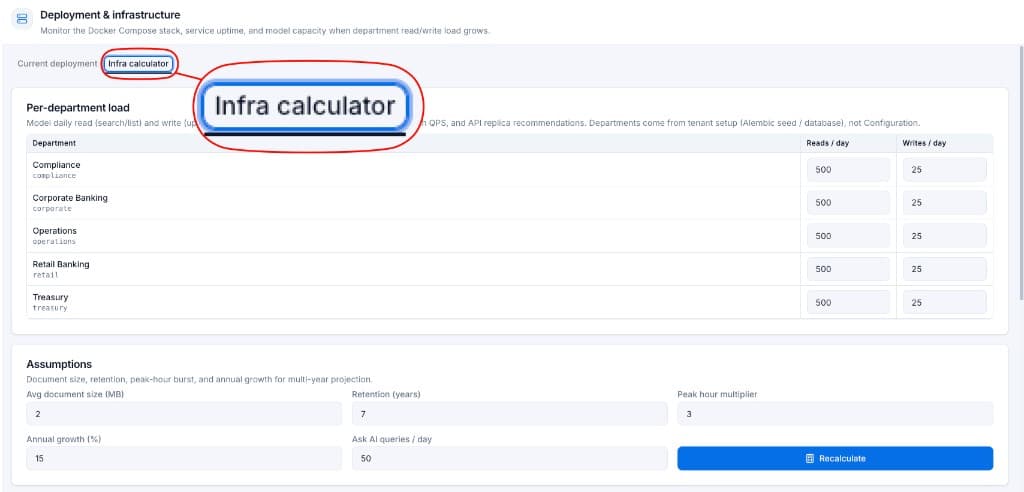
Model daily traffic to estimate peak-hour QPS and API replica recommendations.
Per-department load
| Department | Default reads/day | Default writes/day |
|---|---|---|
| Compliance | 500 | 25 |
| Corporate Banking | 500 | 25 |
| Operations | 500 | 25 |
| Retail Banking | 500 | 25 |
| Treasury | 500 | 25 |
Departments come from tenant setup, not Configuration.
Assumptions
| Parameter | Default |
|---|---|
| Avg document size (MB) | 2 |
| Retention (years) | 7 |
| Peak hour multiplier | 3 |
| Annual growth (%) | 15 |
| Ask AI queries / day | 50 |
Click Recalculate to update projections after adjusting inputs.
Storage Space Monitoring
The Deployment page tracks storage consumption across the instance:
| Metric | Description |
|---|---|
| Total used / allocated | Blob storage and index size vs provisioned capacity |
| Per-department usage | Storage breakdown by department |
| ILM tier distribution | Percentage of documents in hot, warm, and cold tiers |
| Growth projection | Estimated months until capacity threshold based on ingest rate |
| Alert threshold | Warning at 80% capacity; critical at 95% |
Review storage metrics regularly and adjust ILM thresholds or provision additional capacity before limits are reached. See Storage and Lifecycle for tier transition policies.
Implementation
Step 1: Monitor service health
- Open Deployment from the sidebar (super admin only).
- Review the Healthy badge and last-checked timestamp.
- Scan the Services & uptime table for any degraded services.
- Click Refresh to run live probes.
Step 2: Plan capacity
- Switch to the Infra calculator tab.
- Enter expected reads and writes per department.
- Adjust document size, retention, growth, and AI query assumptions.
- Click Recalculate to see peak QPS and replica recommendations.
Benefits
- Operational visibility: Single pane for platform health without direct infrastructure access.
- Proactive scaling: Capacity model informs horizontal scale decisions.
- Environment parity: Consistent deployment topology across development and production instances.
Next Steps
- Storage and Lifecycle: ILM tiers and retention policies
- Backup and Disaster Recovery: backup status and DR topology
- Architecture: platform capability boundaries
- Configuration: tenant settings that affect load
- Introduction: back to Kwik Vault overview