 KwikID Documentation
Documents
Browse, search, preview, download, and manage documents in the Kwik Vault corpus
Documents
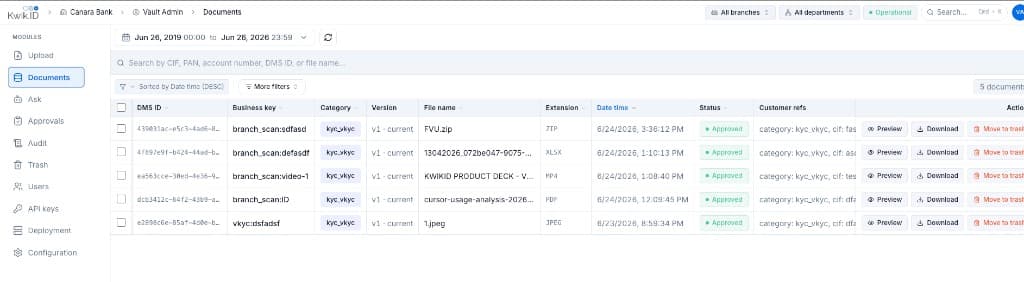
The Documents module is the central repository view for all ingested files. Search, filter, preview in-browser, download, and manage the document lifecycle from a single table.
Overview
Every document is identified by a unique DMS ID (system UUID) alongside its Business Key (source_tag:external_id). The table shows version, approval status, customer references, and file metadata.
Key Features
- Multi-parameter search: Search by CIF, PAN, account number, DMS ID, or file name.
- Date range filter: Preset and custom date ranges (default: last 7 years).
- Branch and department scope: Filter by branch (e.g. North Region, South Region) and department from the top bar.
- Sortable columns: Sort by date time, file name, category, status, and more.
- Row actions: Preview, download, and move to trash per document.
- Bulk selection: Checkbox column for future bulk operations.
- Document count: Live count of matching documents (e.g. "5 documents").
Document Preview
Click Preview on any row to open the in-browser document viewer with metadata and audit trail.
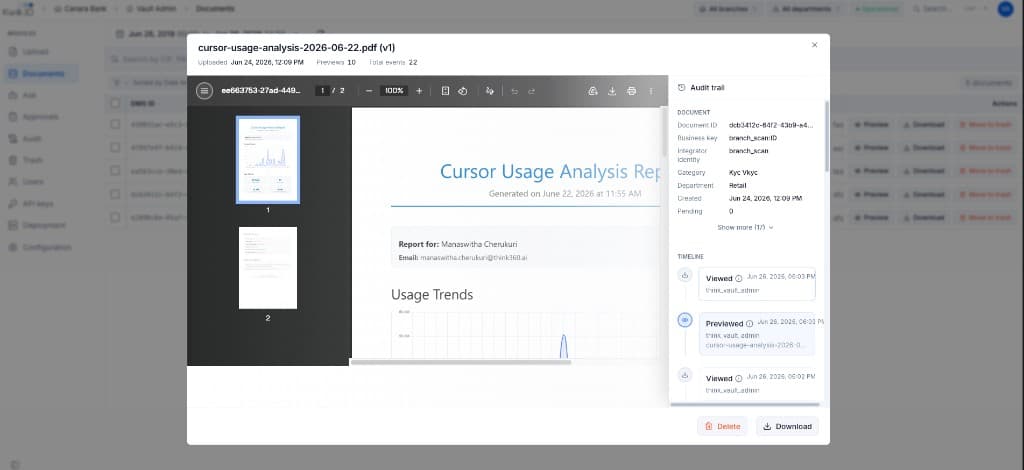
The preview modal includes:
| Panel | Contents |
|---|---|
| Viewer | Multi-page PDF viewer with zoom, rotation, fullscreen, print, and download controls |
| Document metadata | DMS ID, Business Key, Integrator identity, Category, Department, Created timestamp |
| Audit trail timeline | Chronological list of View, Preview, Download, and other actions with actor and timestamp |
| Actions | Delete (move to trash) and Download buttons |
Branch Filtering
Use the branch dropdown in the toolbar or top bar to narrow results to a specific branch.
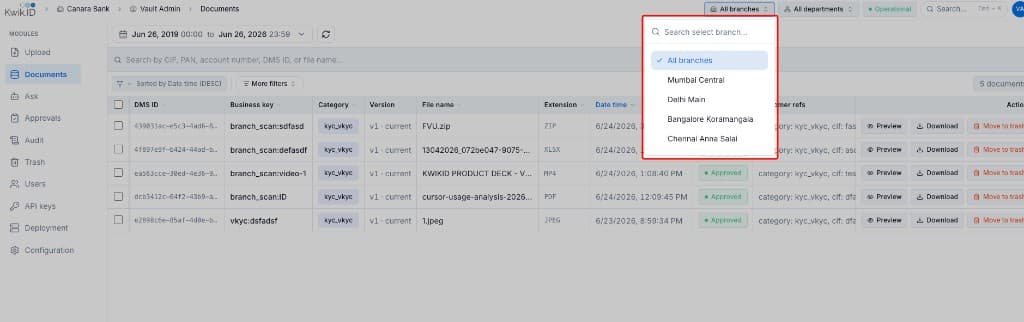
Available branches are seeded per tenant during organization setup (e.g. North Region, South Region, East Region, West Region).
Implementation
Step 1: Search and filter
- Open Documents from the sidebar.
- Set the date range picker to your desired window.
- Enter search terms in the search bar (CIF, PAN, account number, DMS ID, or file name).
- Use More filters for column-level rules (category, status, extension).
- Select branch and department from the top bar scope selectors.
Step 2: Review a document
- Scan the table columns: DMS ID, Business key, Category, Version, File name, Extension, Date time, Status, Customer refs.
- Click Preview to open the viewer and audit trail.
- Click Download to save the current approved version locally.
- Click Move to trash to soft-delete (recoverable by super admin in Trash).
Step 3: Navigate from global search
Press Cmd + K (or Ctrl + K) to open the command palette and jump to Documents or run a quick navigation search.
Table Columns
| Column | Description |
|---|---|
| DMS ID | Unique document UUID; copyable |
| Business key | source_tag:external_id identifier |
| Category | Document category tag (e.g. kyc_vkyc) |
| Version | Version number and current/pending indicator |
| File name | Original uploaded filename |
| Extension | File type (PDF, ZIP, XLSX, MP4, JPEG, etc.) |
| Date time | Ingest or last-indexed timestamp |
| Status | Approval state badge (Approved, Pending, etc.) |
| Customer refs | Truncated CIF, PAN, account metadata |
Benefits
- Single pane of glass: All departments' documents in one permission-aware view.
- Instant discovery: Sub-second metadata search replaces manual folder hunts.
- Full traceability: Preview modal links every document to its audit timeline.
Next Steps
- Audit: export activity logs for compliance
- Approvals: review pending versions
- Trash: recover or permanently delete soft-deleted documents
- Integration APIs: search and download endpoints